
Setting up an AVI cluster in the VI Workload Domain on VCF 9.1
This blog continues the blog “https://vxlearners.com/2026/07/12/2037/“. In that blog, we saw how to deploy AVI controllers using SDDC Manager. However, in version 9.1, this functionality moved from SDDC Manager to VCF Operations. In this blog, we will see how to deploy AVI controllers for the VI workload using VCF Operations, the brain of VMware Cloud Foundation.
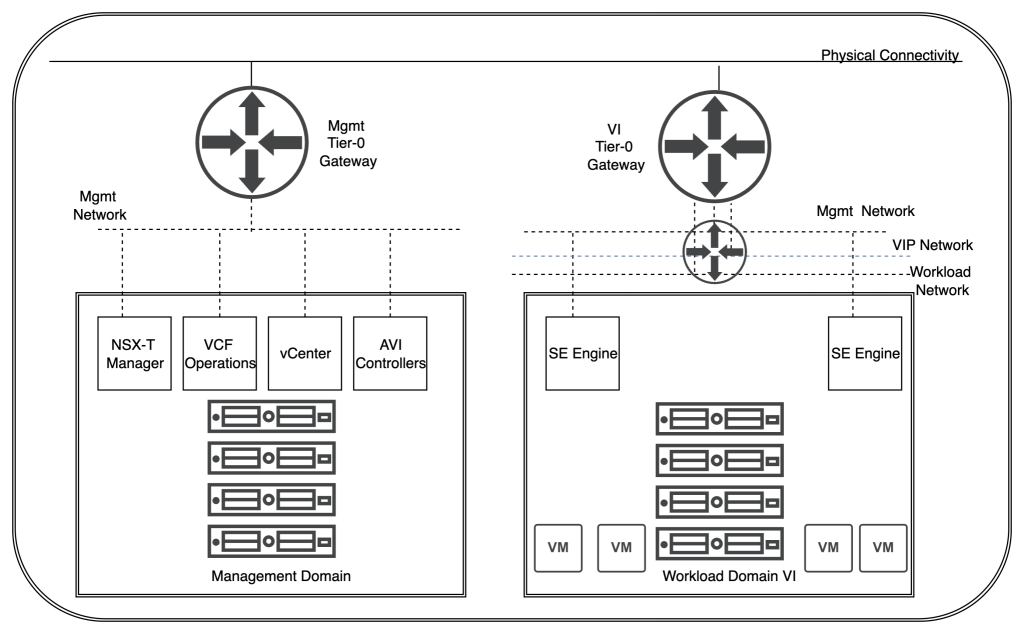
Diagram
In our environment, we have one Management Domain where we deploy all management components, including SDDC Manager, vCenter, NSX Managers, and VCF fleet components for VCF 9.1, and one Workload Domain where we deploy application-related VMs. In the Management domain, we have four ESXi hosts with vSAN OSA (Original Storage Architecture).
In VCF 9.1, when you create the AVI controller cluster, VCF Operations automatically integrates certain backend tasks, such as creating a cloud connector and registering it with the VCF supervisor cluster.
Below is a detailed description of how the Avi controller is deployed in minutes through VCF Operations:
- Creating the Cloud Connector to connect to VCF.
- Registering with the VCF supervisor.
- Creation of Avi service accounts.
Configuration
Now, our VCF environment 9.1 is already deployed with one workload domain. Now is the right time to deploy our AVI controllers through VCF Operations 9.1.
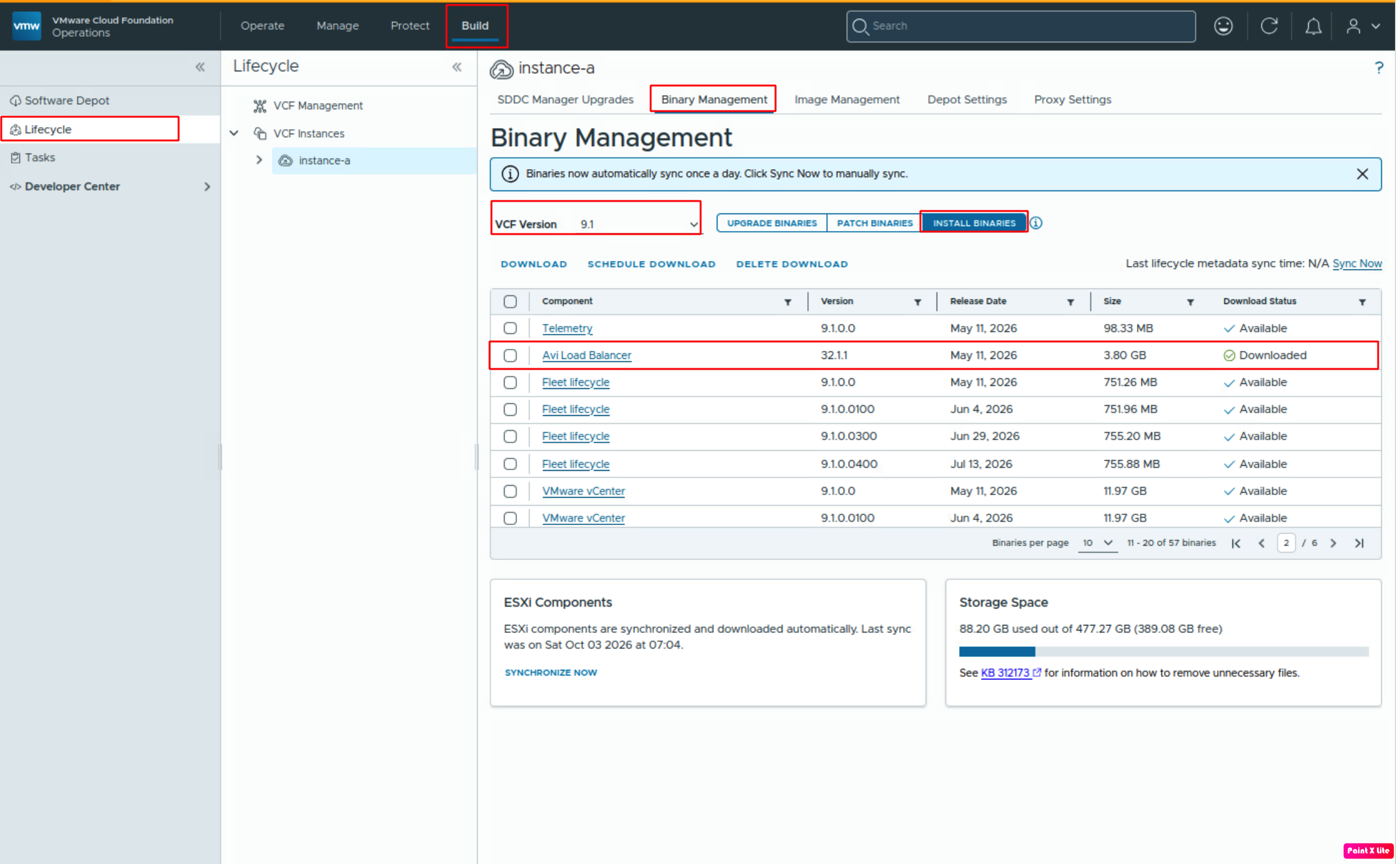
To proceed with the deployment, we need to either download the AVI binaries or have them available in VCF Operations. To validate or download them, go to VCF Operations > Build > Lifecycle > Binary Management > Install Binaries. In our case, AVI load balancer binaries are already downloaded.
Now that the binaries are available, we can start deploying AVI controllers. To proceed with deployment, go to VCF Operations > Build > click on the workload domain under the VCF instance > Management components.
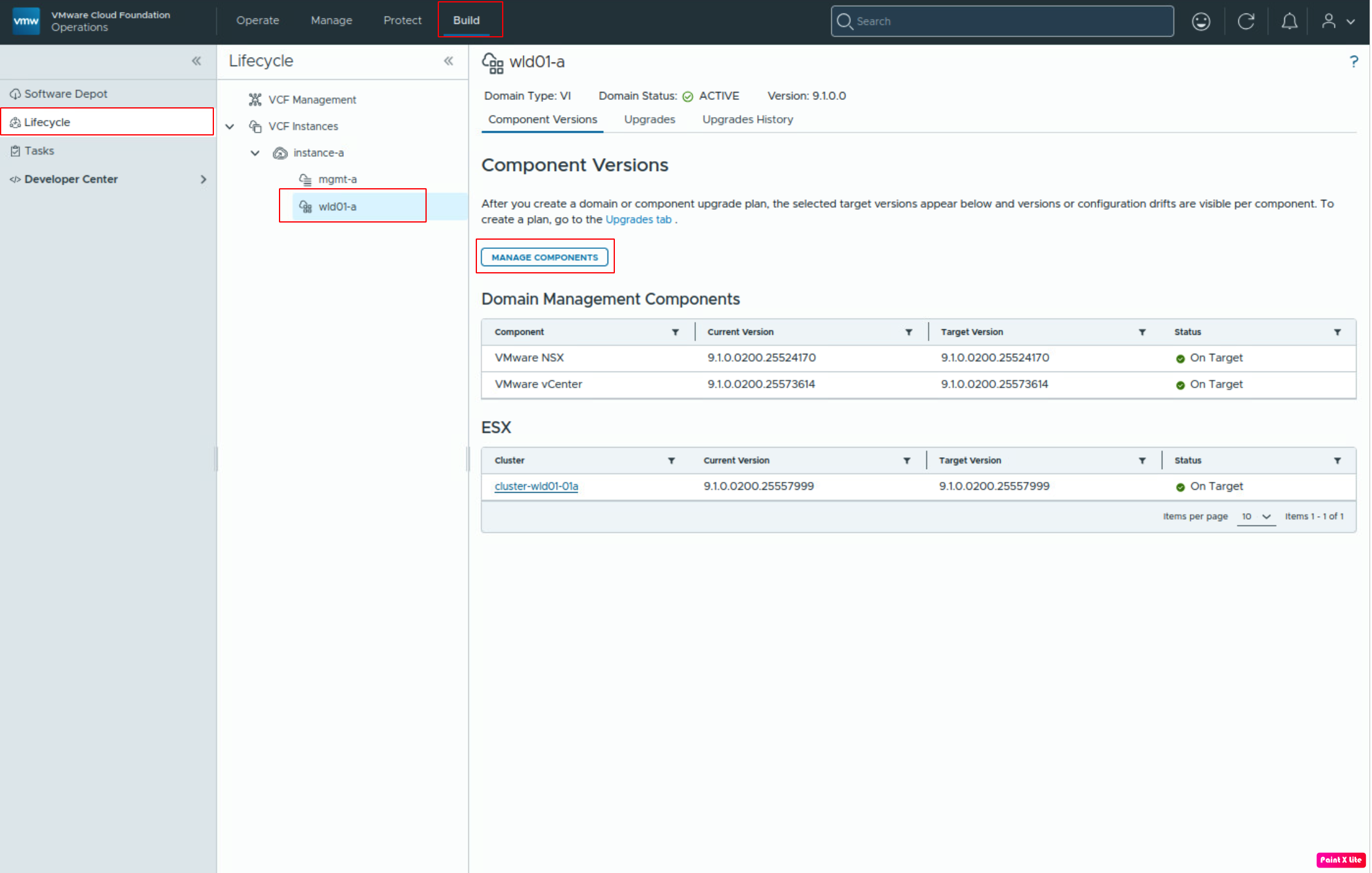
Click Install AVI Controller to start the deployment wizard.
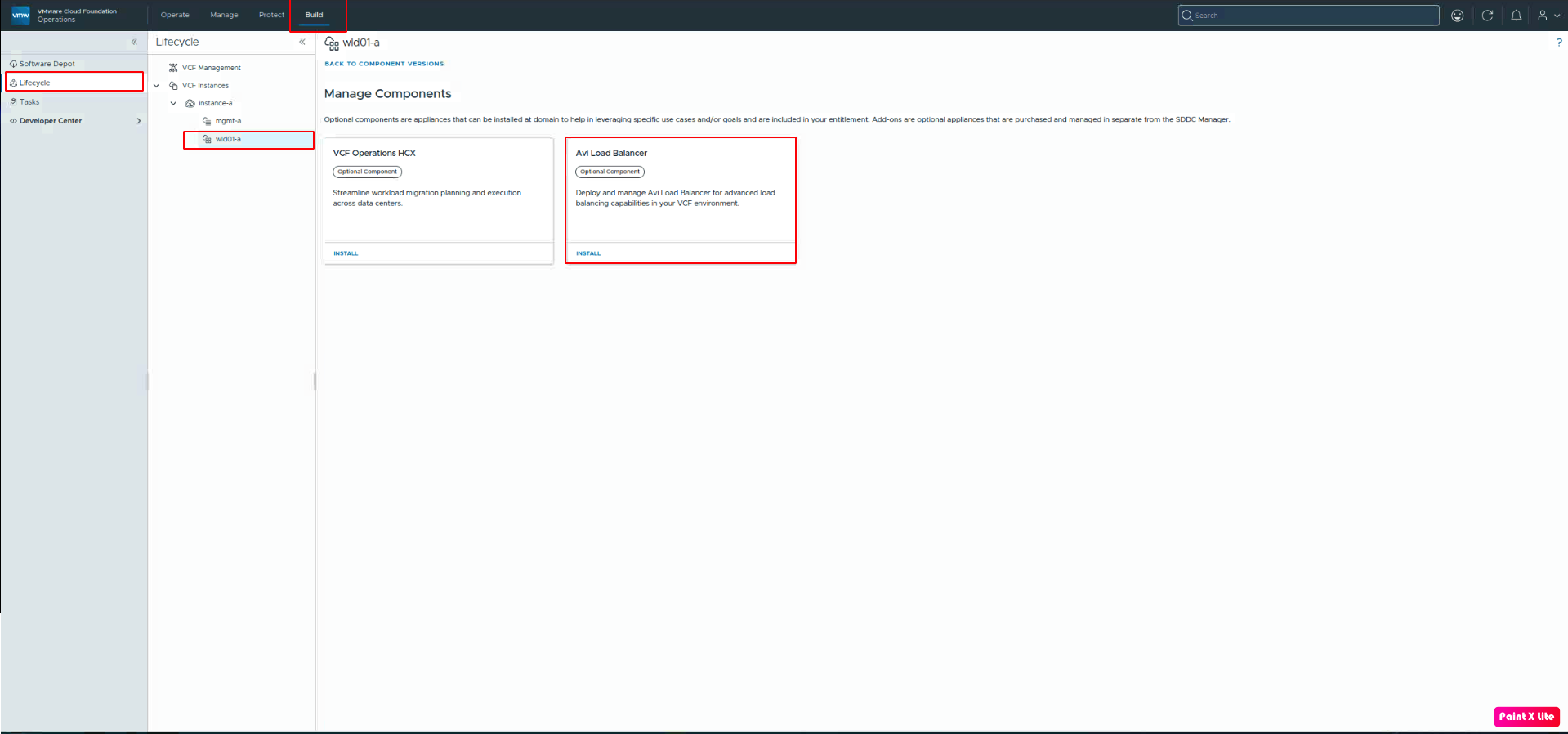
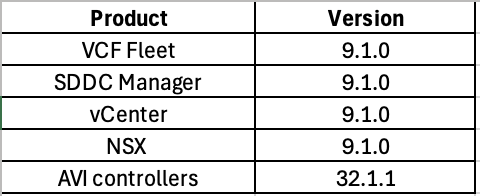
Since we already downloaded the required AVI Controller binaries, check their compatibility with the already deployed NSX Manager using the Broadcom Compatibility Matrix.
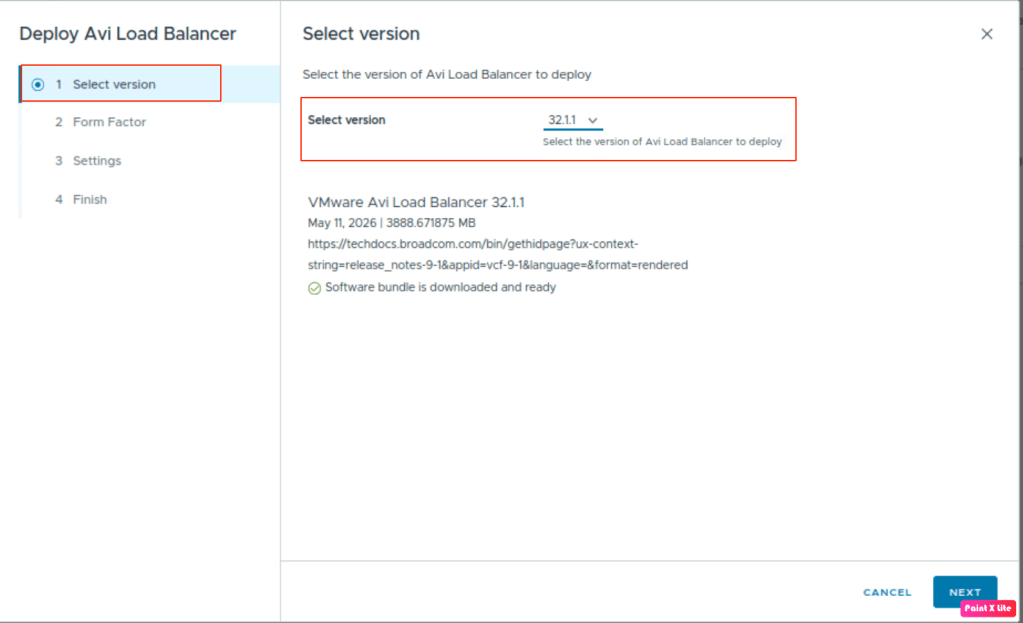
Select the required AVI Controller version “32.1.1“.
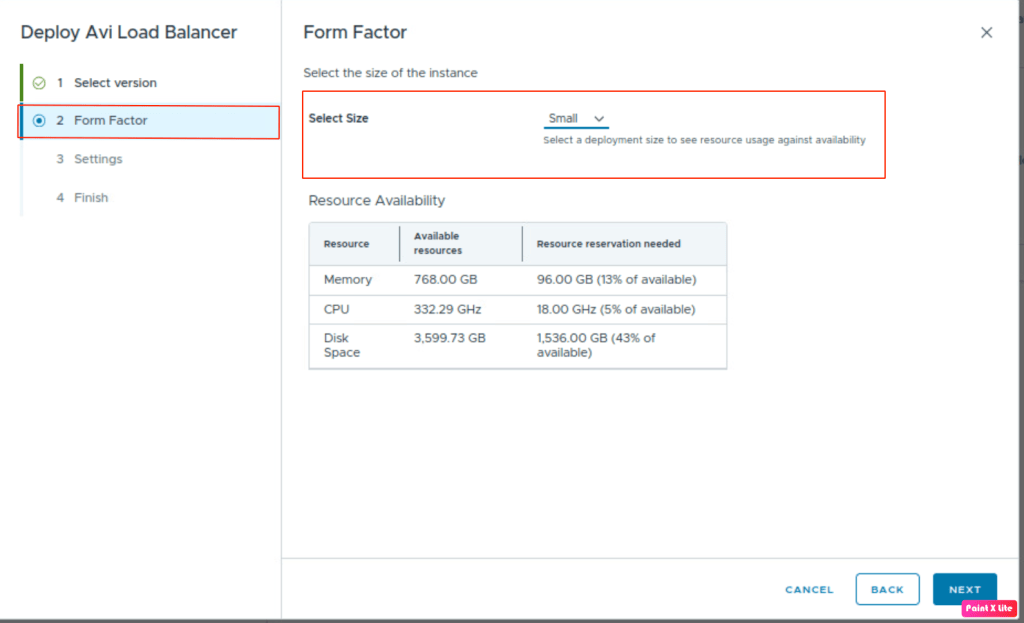
Click Next to select the form factor. This provides information about the memory, CPU, and disk space the AVI controllers will consume.
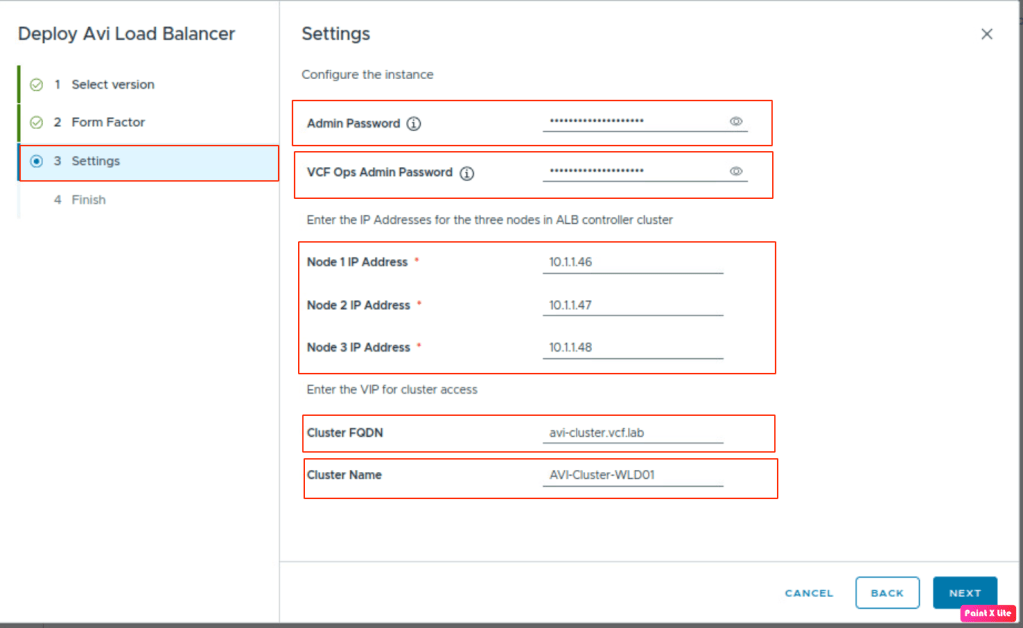
Click Next to provide information such as the AVI controller’s node IP address, password, cluster FQDN, and more.
In the final step, let’s review the configuration and proceed with the deployment.
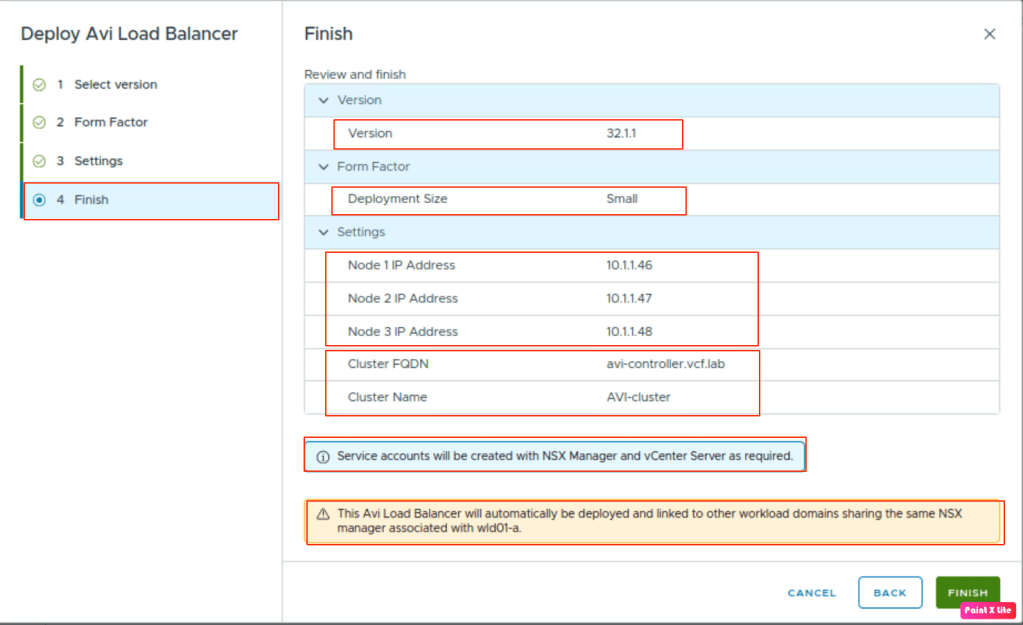
The deployment will automatically create a service account for NSX managers and vCenter.
The deployment has completed successfully; AVI controllers for WLD will be deployed in the Management domain, while SE will be deployed in the WLD where the application resides.
The NSX Cloud connector will also be created automatically; let’s validate its configuration.
Log in to the AVI controller using the cluster IP address or FQDN, then go to Infrastructure > Clouds > NSX Cloud, click the three dots, and edit the cloud.
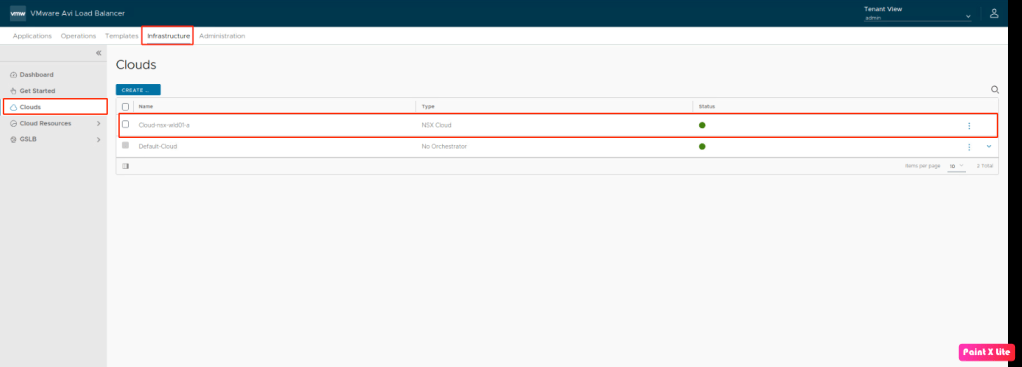
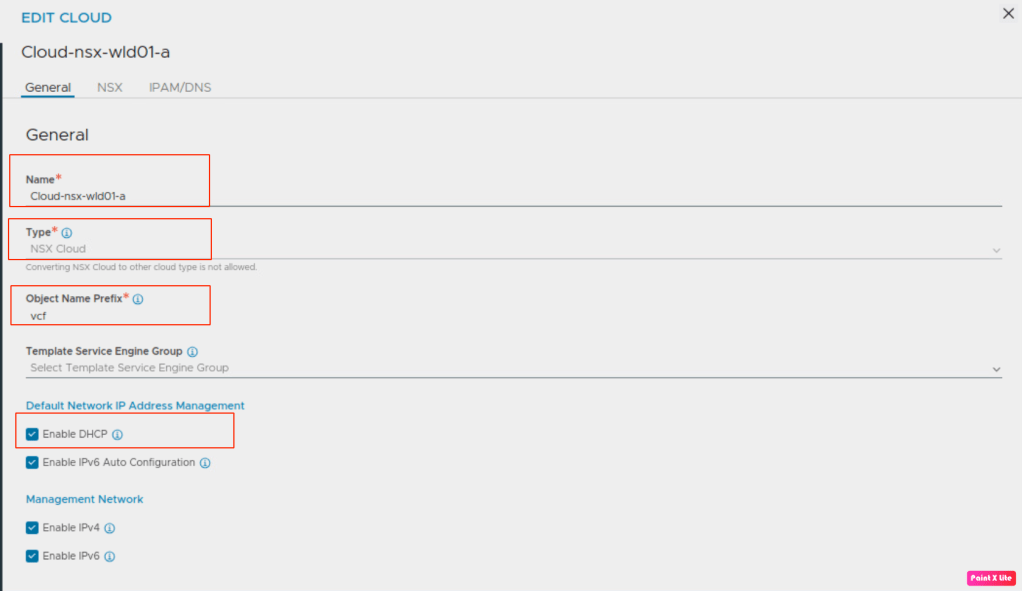
The VCF operation AVI deployment wizard automatically configures settings such as Cloud Name, cloud type, and the object name prefix. However, we can edit the remaining settings as per our requirements.
Summary
In this blog, we have successfully provisioned AVI controllers using VCF 9.1 with VCF operations. In upcoming blog posts, we will discuss the integration of AVI with NSX VPC and VCF automation in more detail.


Leave a Reply