

In the last blog, we configured NSX-T logical components which are essential to configure the NSX-T cloud connector in the NSX ALB Controller like logical segments, Tier-1 gateway, and DHCP server via Terraform(https://vxlearners.com/2024/01/25/infrastructure-as-a-code-automating-integration-of-nsx-t-with-nsx-alb-via-terraform-part-1/). In our environment, Tier-0 gateway, Edge Cluster, and transport zones were already configured. We have leveraged the existing NSX-T and vSphere components.(We will discuss more about vSphere components in this blog).
In this part of the series, we will configure NSX-T cloud connector, SE group, user credentials, mandatory to create virtual services in the NSX-ALB via terraform.
Topology Diagram
In our environment, we have already deployed NSX-T (single controller), NSX- ALB controller, and a single edge cluster. We have also configured a single tier-0 gateway using the edge cluster, which is connected to upstream routers via BGP. Using terraform three separate logical segments like AVI SE management segment, data segment, and one for LB SE VIP will be created. Along with it, a new Tier-1 gateway will be configured and connected to parent Tier-0 gateway. Any configuration work on vCenter is out of scope of this article. However, we will call its object using terraform like “Content Libraries”, datacenter, compute cluster, datastore, credentials, and so on.

Pre-Validation
In our environment, AVI controller is already deployed and it is reachable from management-PC.In continuation of pervious blog, we start validating our ALB controller. In the first step, we will validate the existing cloud in NSX-ALB controller.
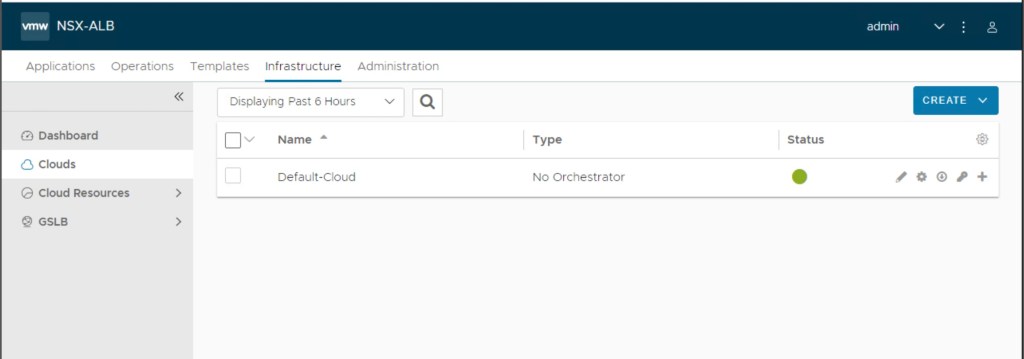
In the above screenshot, it is confirmed that ALB controller has only one cloud “Default-Cloud”.
Now, we will validate existing service engine group on ALB controller. It is confirmed that, there is only single SE-Group present on AVI Controller.

NSX-T cloud will also consume vCenter, and NSX-T credentials to deploy SE’s and virtual services.

Configuration AVI logical constructs via Terraform
In this step, we will update all perviously created terraform files like main.tf, variable.tf, and provider.tf to include configuration related to AVI load balancer. Please refer pervious blog (https://vxlearners.com/2024/01/25/infrastructure-as-a-code-automating-integration-of-nsx-t-with-nsx-alb-via-terraform-part-1/) for more information.
–> Provider.tf:- No changes are required as this file already included required terraform provider details and its required versions.
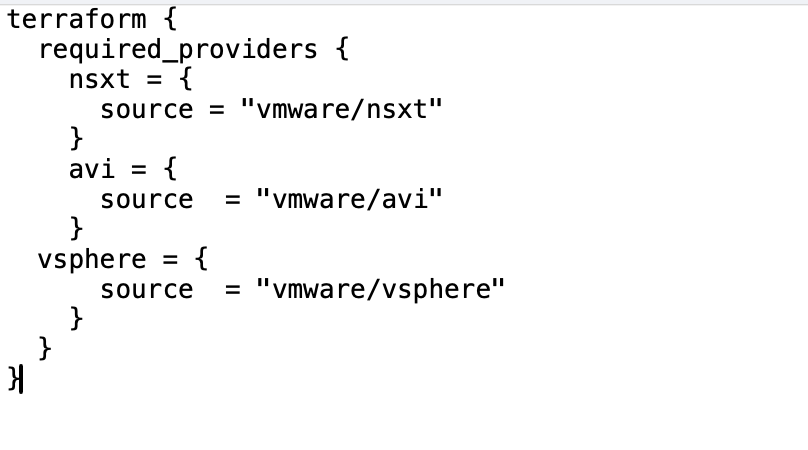
–> Variable.tf:- This file is updated to include variable components used by vSphere, and AVI controller.

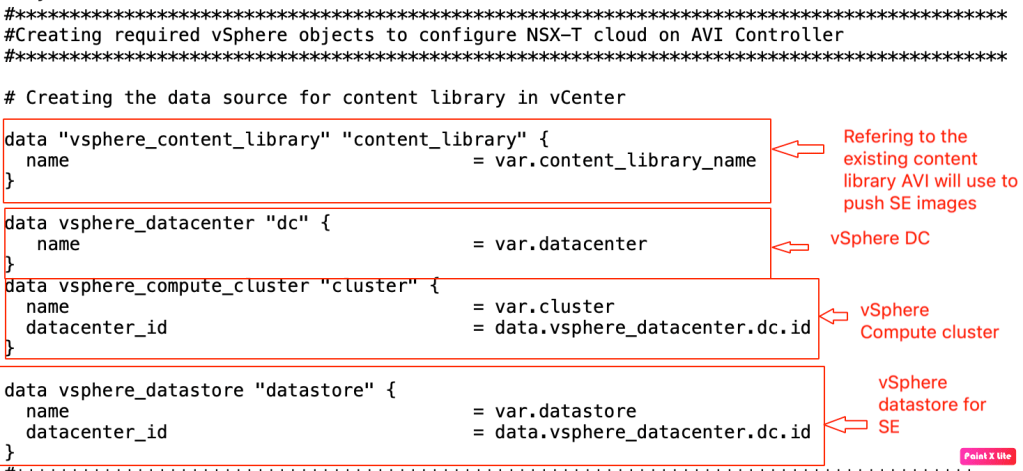
–> Main.tf:- We have updated perviously used file to include information about vSphere and NSX-ALB.
We are using existing vSphere content library, datacenter, datastore, compute clusters imperative for SE deployment.
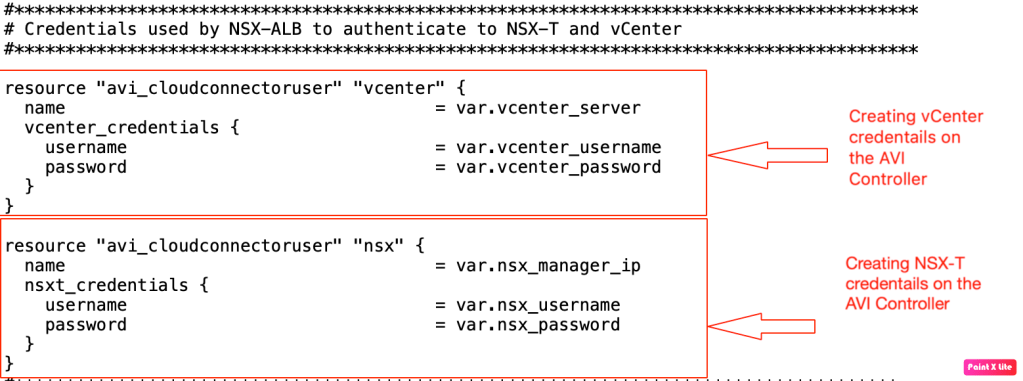
In the below step, we will create NSX-T and vSphere users in the AVI controller, which it uses for NSX-T cloud for SE deployment.
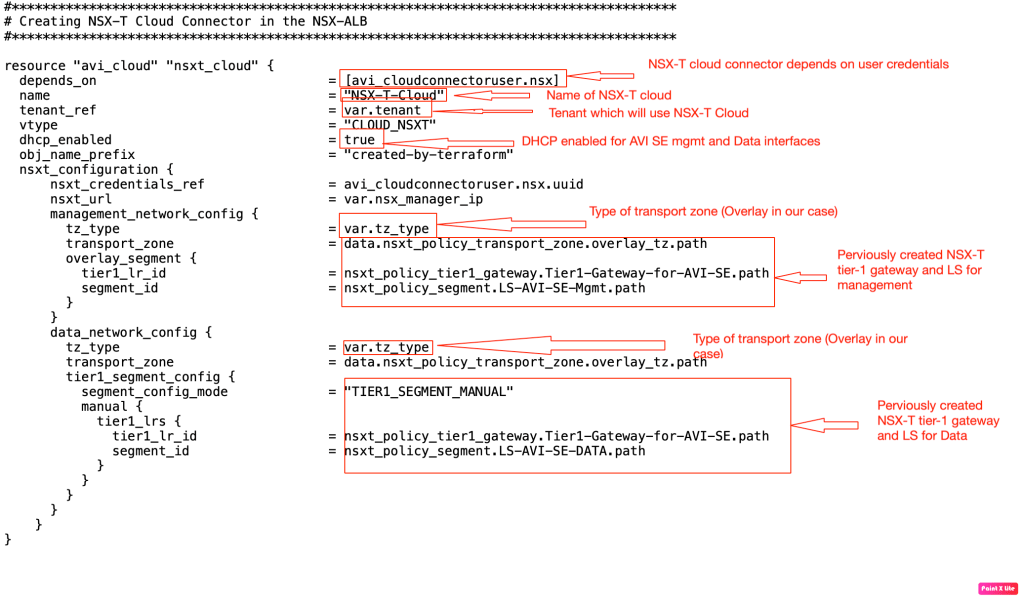
Now, a foundation has been laid and we can start creating NSX-T cloud in the AVI controller. Below steps will demonstrate the terraform configuration to deploy NSX-T cloud connector.
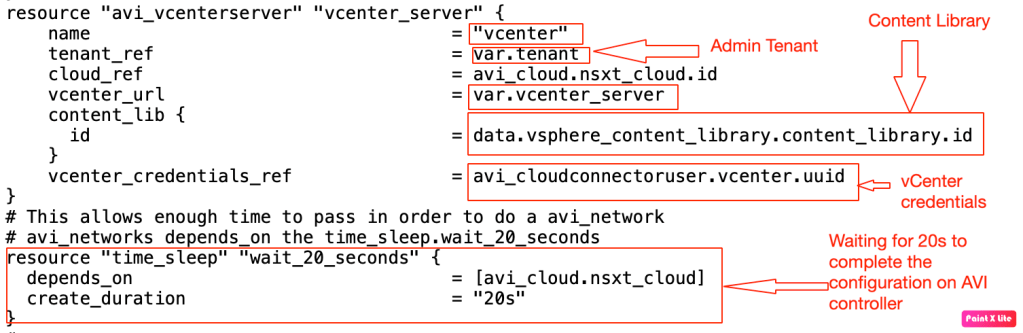
At this part of the blog, we are left only with vSphere configuration required by advance load balancer. Let’s configure feed vSphere configuration on the AVI controller for NSX-T cloud.
Lets create the SE group which above created NSX-T cloud will consume.

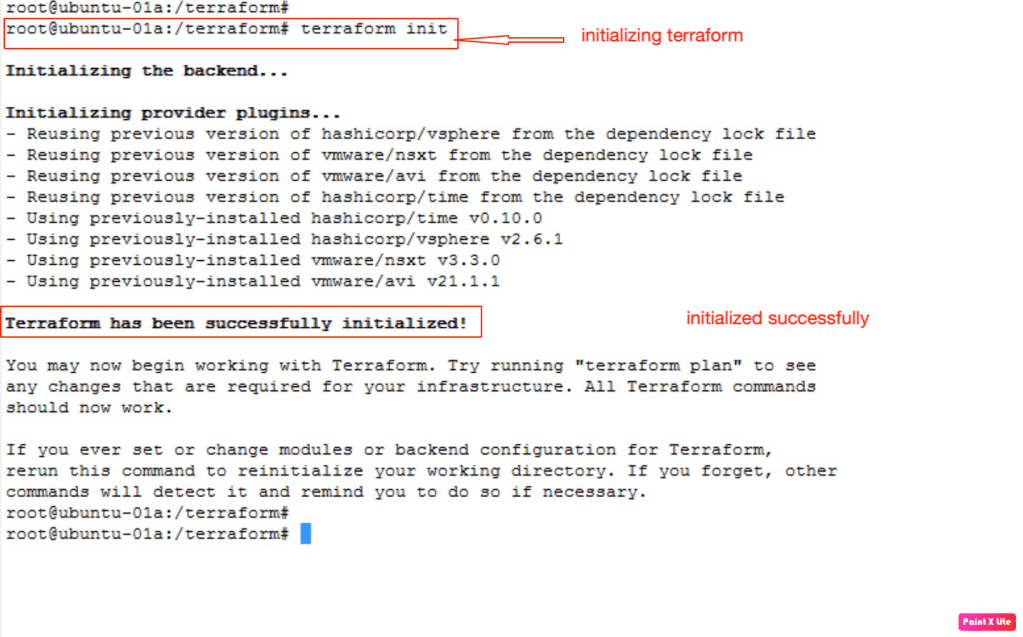
Now it is the time to initialise the terraform from the management PC to download latest versions of terraform providers (vSphere, NSX-T, AVI).
Now we will apply the terraform script so that it will configure all necessary logical constructs on the AVI Controller.
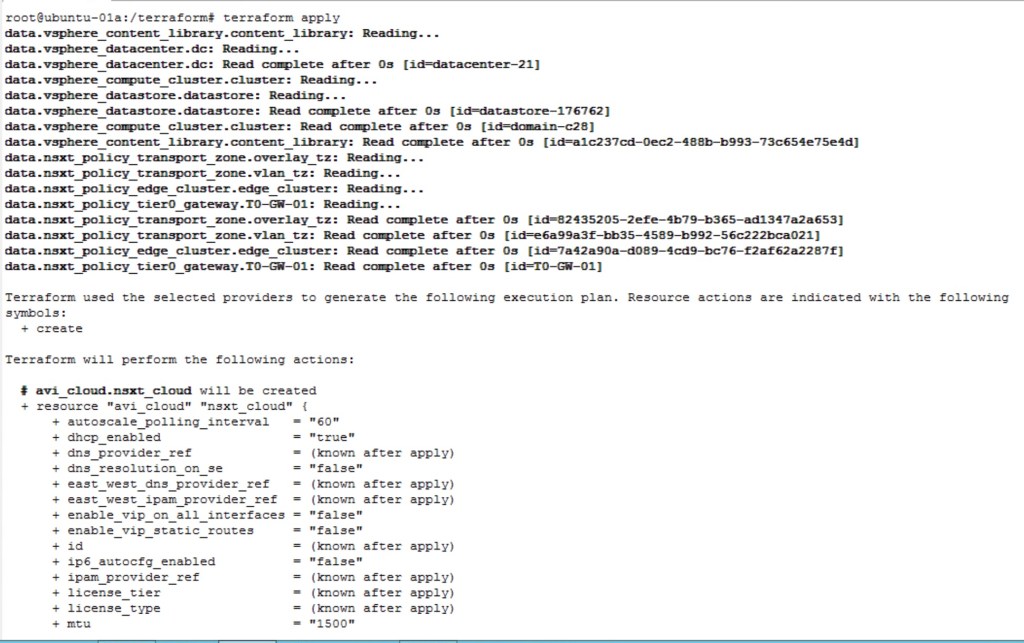

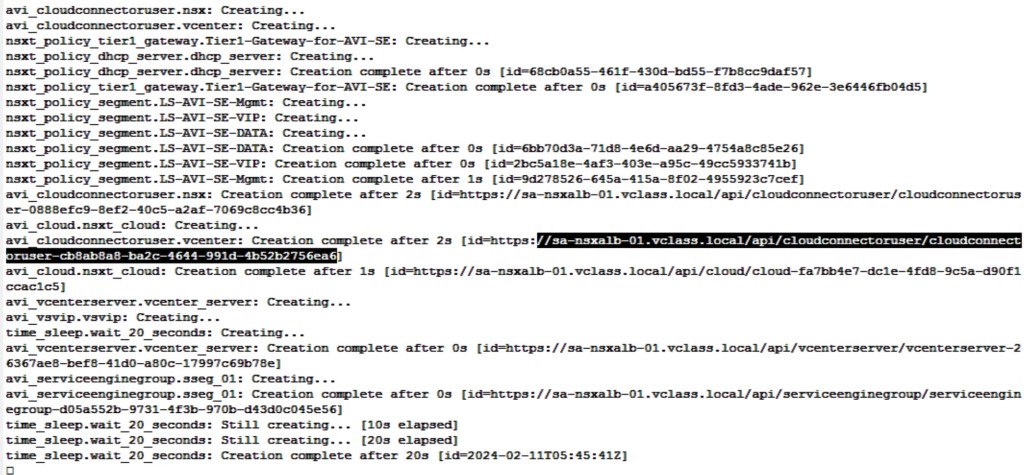
In the above screenshot, it is confirmed that terraform has successfully configured required logical constructs on the NSX-ALB.
Validation
In this step, we will validate the creation of AVI logical constructs. Firstly, we will validate the creation of NSX-T cloud in the AVI load balancer.Navigate to Infrastructure > Clouds.
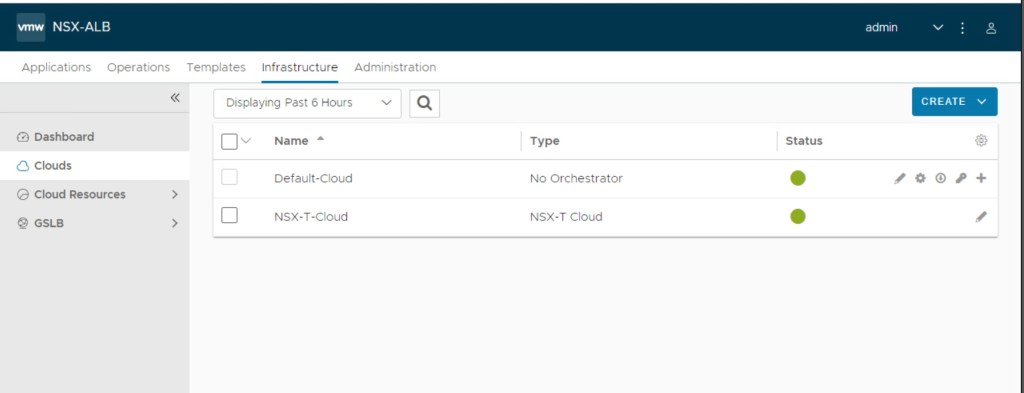
Verify the name of NSX-T cloud in the terraform script, it is the same name provided in the main.tf of it.
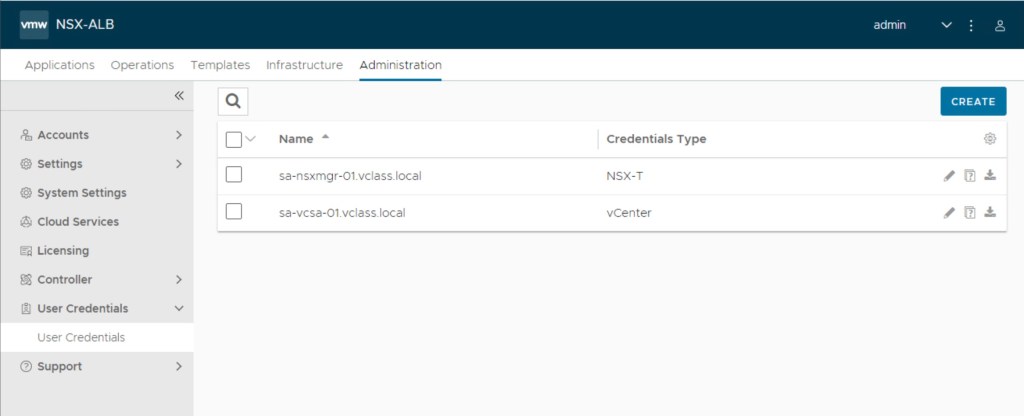
Now, we will verify the creation of users credentials for NSX-T and vCenter on the AVI controller. Navigate to Administration > User Credentials > User Credentials.
Let’s verify the new SE group which NSX-T cloud will use. In the below image, it is confirmed that NSX-T cloud can use either “Default-Group” or “NSX-T-SG-01” (created by Terraform). Navigate to Infrastructure > Cloud Resources > Service Engine Group.

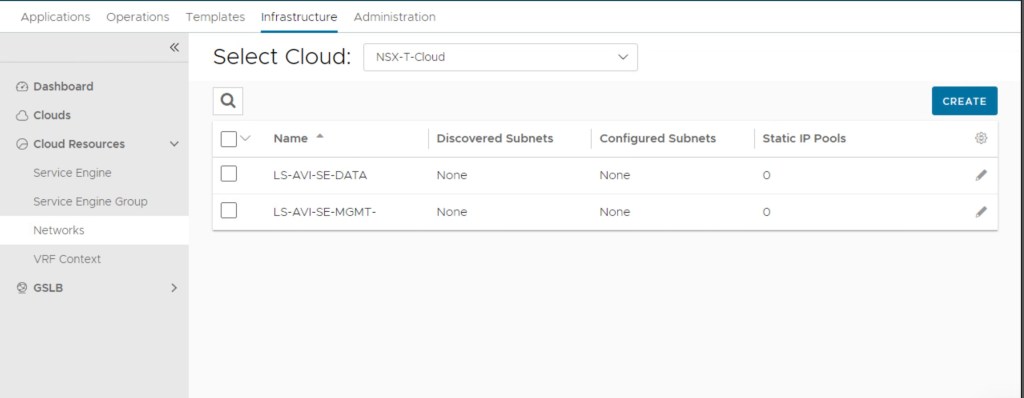
In the final step of verification, we have validated that newly created NSX-T logical segments are visible on the AVI controller. Navigate to Infrastructure > Cloud Resources > Networks.
In Summary:
In the last blog, we have successfully deployed NSX-T logical segments, Tier-1 gateway, and a DHCP server using terraform. We have also used existing Tier-0 gateway, edge cluster, transport zone. BGP is already configured between tier-0 gateway and upstream router. However, in this part of the blog, we successfully deployed user credentials, a NSX-T cloud connector, and a SE group in the AVI controller using terraform.
In the last part of this series, we will create a virtual VIP, a server pool, and a virtual services using terraform.
I have uploaded the terraform script used in part-1 and part-2 on git hub:- https://github.com/anujjain116/Infrastructure-as-a-Code–Automating-integration-of-NSX-T-with-NSX-ALB-via-Terraform


 vxlearners
Leave a reply to Neil Moore Cancel reply