
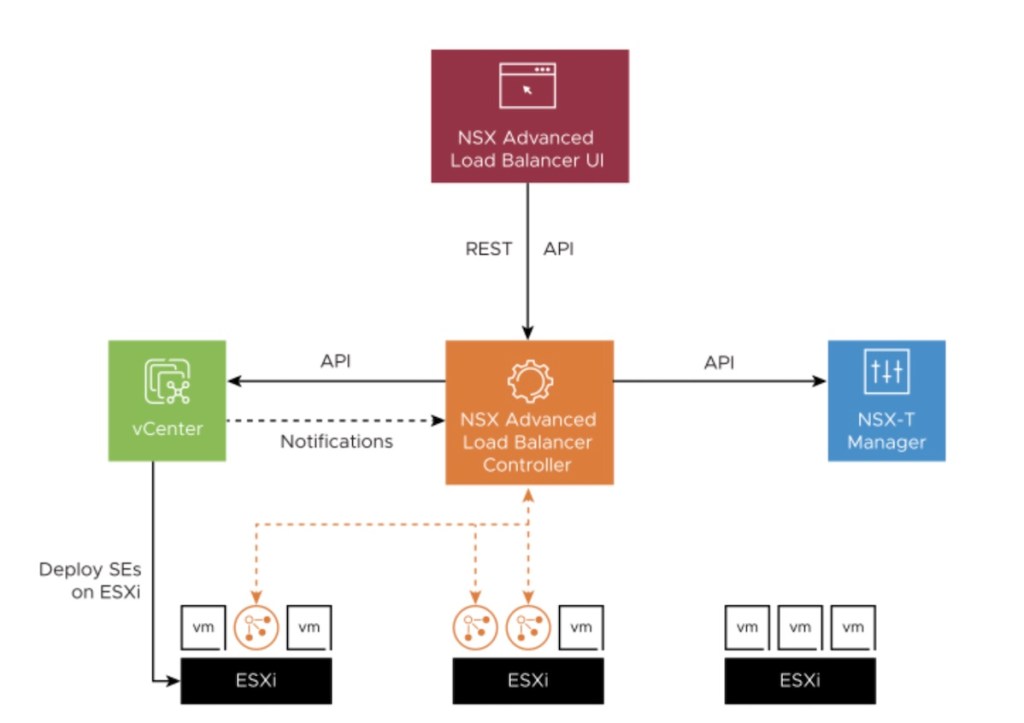
It is the time to enhance our knowledge in integrating vCD with other VMware products like NSX ALB. During the initial configuration of vCD with NSX-T, we explored different concepts like creating vAPP segments without and with “Data Center Groups”. However, it is time to fasten our seat belts and work on different services vCD can provide to Organizations. In this blog series, we will provide a Load balancer as a service to customers onboarded via VMware Cloud Director.
This blog will first discuss “How NSX-T will be integrated with NSX ALB”. In upcoming parts, we will discuss how NSX-ALB integrates with vCD, and Load Balancer as a service will be implemented per Organization ( one or more OrgVDC belong to the same customer).
Topology Diagram
As we have already seen in the previous series, how vCD has been integrated with NSX-T using the same concept we have already configured different segments AVI LB management, and data segments) required to onboard AVI load balancers. In the below diagram, two separate VRF tier-0s have been spined up, one for management and another one for vCD tenant-A belonging to OrganizationA. In the below diagram, we have configured two Tier-0 VRF gateways one for management, and another one for OrgVDC. All management components like vCenter, NSX-T, NSX-ALB, and AVI SE are connected to “Mgmt Logical Switch” (172.16.250.0/24), which are connected to “Mgmt Tier-1”. This Tier-1 is connected to “Mgmt Tier-0 VRF”.
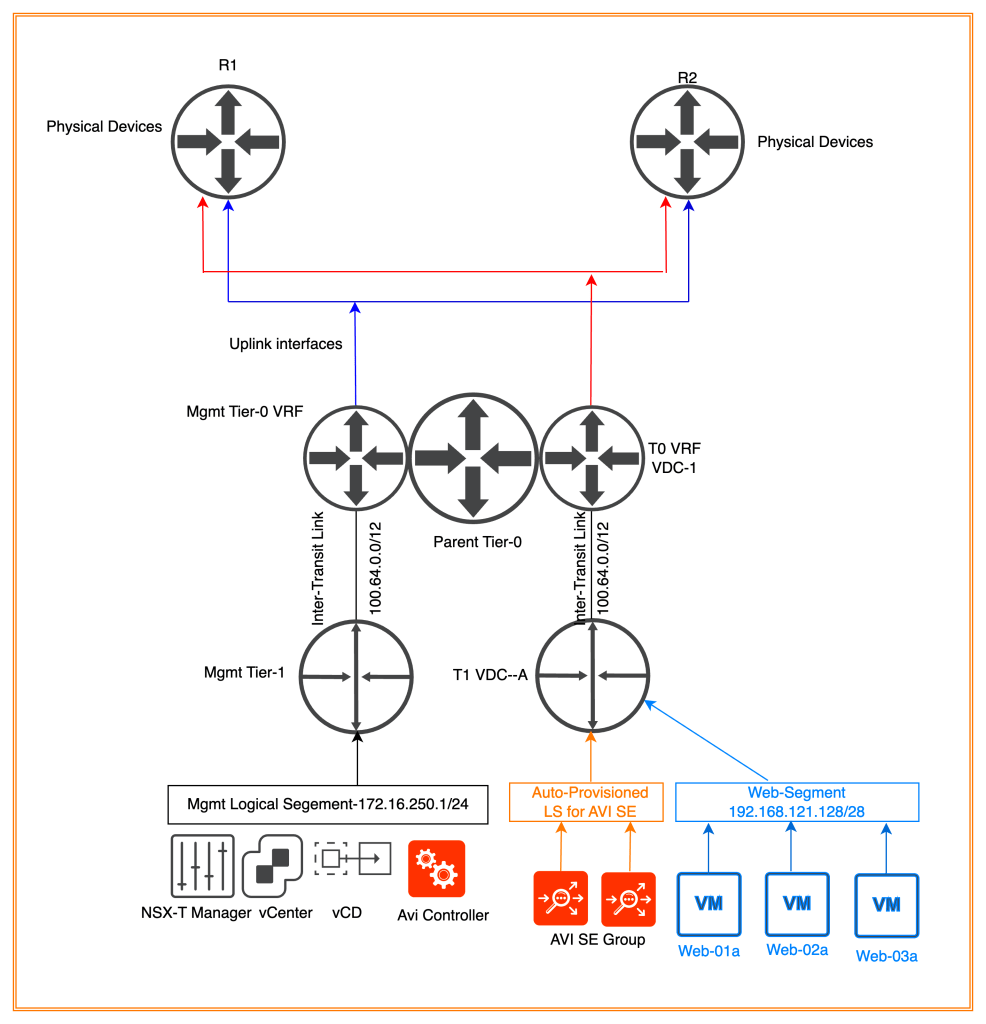
To provide load balancing services for the applications hosted in customer OrgVDC, one logical segment has been configured for AVI SE data segments, which will be connected to “Tier-1 VDC-A” (OrgVDC Tier-1 Gateway).
AVI SE can be used and allocated to organizations either in dedicated mode (AVI SE group per OrgVDC) or shared mode (same AVI group can be shared across multiple customers ).
NB: AVI SEs have only nine vNICs, therefore same SE can be shared across 8 OrgVDC’s only.
Different VMware components like vCenter, NSX-T, NSX-ALB, and vCD can be connected to vCenter Port groups. However, AVI Service Engines require management logical segments. In case, AVI SEs and AVI Controllers reside in different networks make sure to open necessary ports “TCP-22”, and “TCP-8443”.
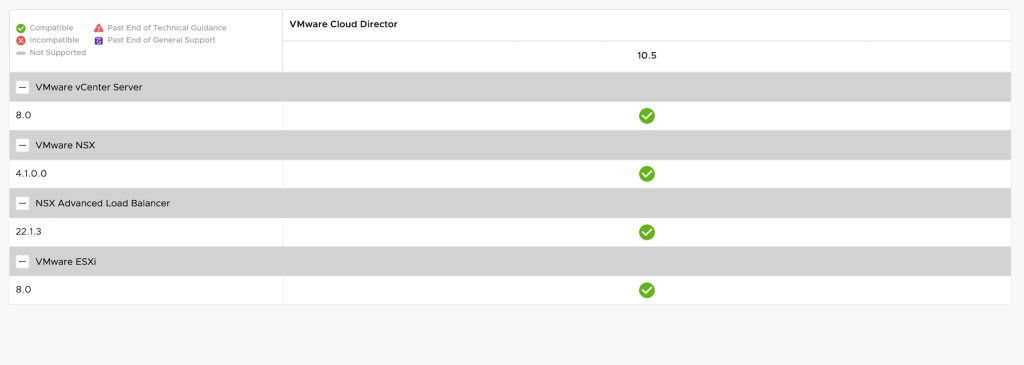
Software Version of Current Component
| vCenter version | 8.0.0 |
| ESXi Host version | 8.0.0 |
| vDS version | 8.0.0 |
| NSX-T version | 4.1.0 |
| vCD (Cloud Director) | 10.5 |
| NSX-ALB | 22.1.3 |
| NSX-SE | 22.1.3 |
However, before proceeding with the integration of different VMware products like VMware vSphere, NSX-T, and NSX-ALB with vCloud Director, it is also recommended to verify the compatibility between the products. Below we have validated the compatibility using VMware compatibility matrix.
Configuration
In this step of the blog, we will cross-verify all logical constructs required to configure Cloud Connector for NSX-T in NSX-ALB. This cloud connector will be onboarded into the vCD to provide load-balancing services.
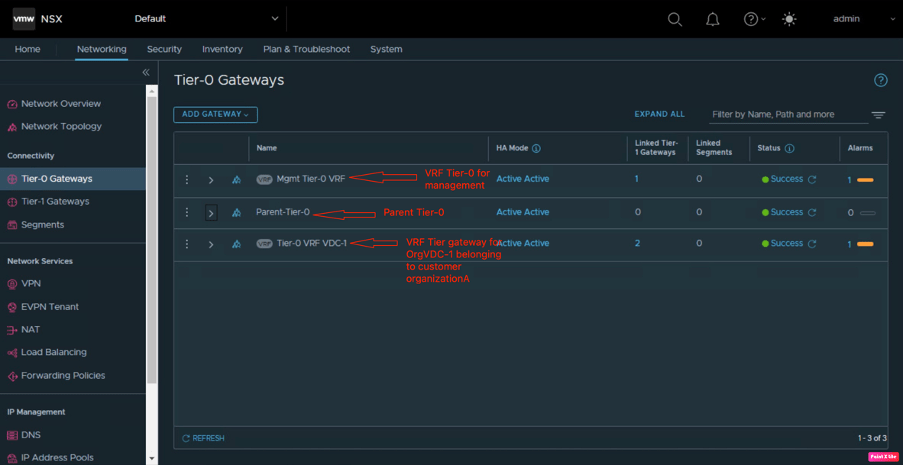
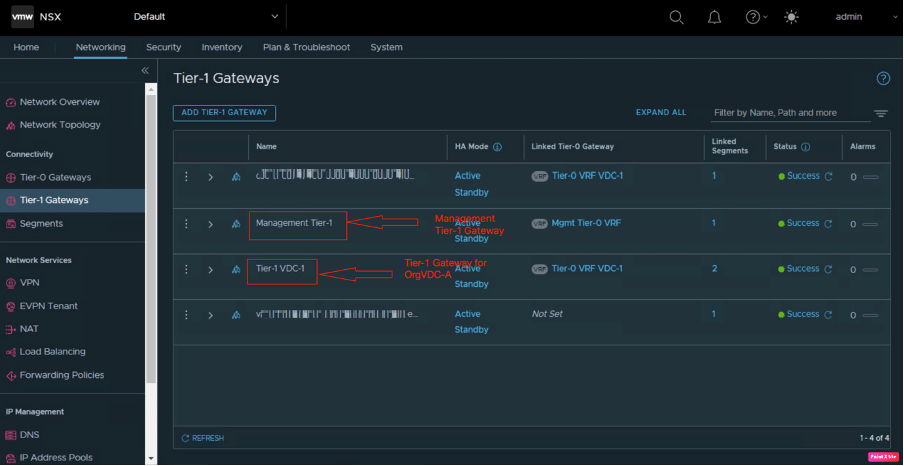
In the first step, we will verify the logical constructs of NSX-T required to create an NSX-T cloud connector. We have created two Tier-0 VRFs, one for management and another one for OrgVDC-1.
Two Tier-1 gateways have been configured, one for management services, and another for OrgVDC-A.
In this step, we will verify the Logical Segments configured for AVI SE (Management and Data traffic).
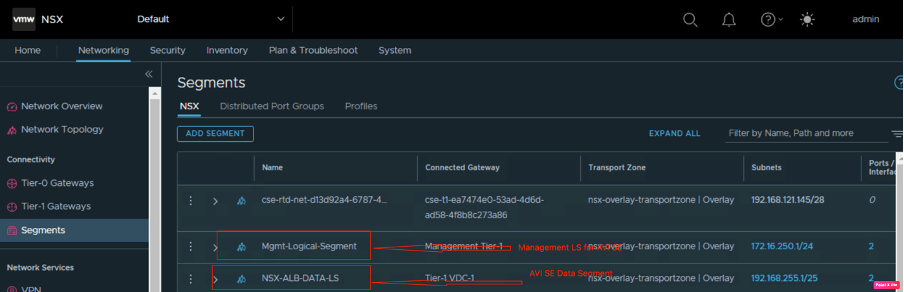
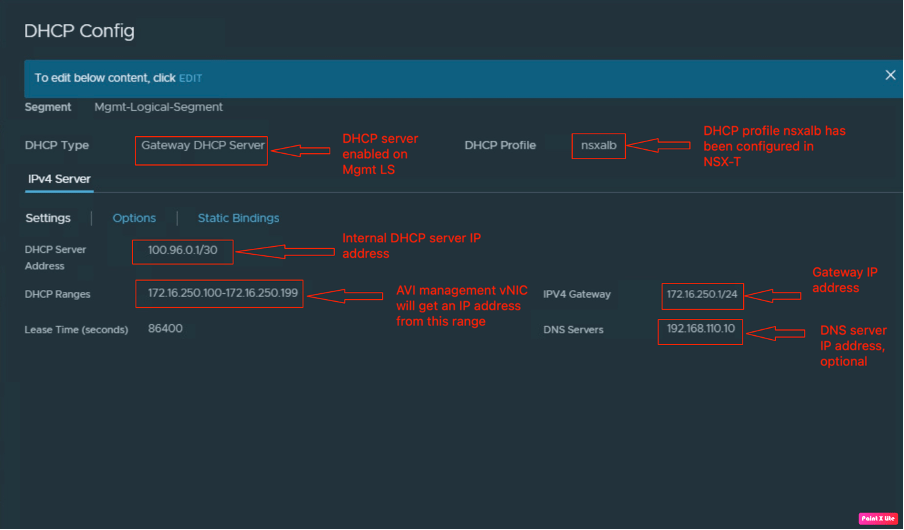
DHCP has been enabled for AVI logical segments “Mgmt-Logical-Segment” and “NSX-ALB-DATA-LS” so that AVI SEs will get an IP address for both Data and Management interfaces via DHCP.
NB: This DATA-LS is a dummy overlay segment provisioned to configured NSX-T cloud in the AVI Controller. In part-3, vCD will provision a new DATA-LS for AVI SE’s, and replace the dummy Data-LS in the Cloud. After successful configuration, dummy Data-LS can be deleted from NSX-T.
Make sure to provision the Gateway DHCP server on Tier-1 gateway on which Data-LS will be connected.
However, DHCP has been enabled for NSX-ALB-DATA-LS from the VCD tenant portal, which is out of the scope of this blog.
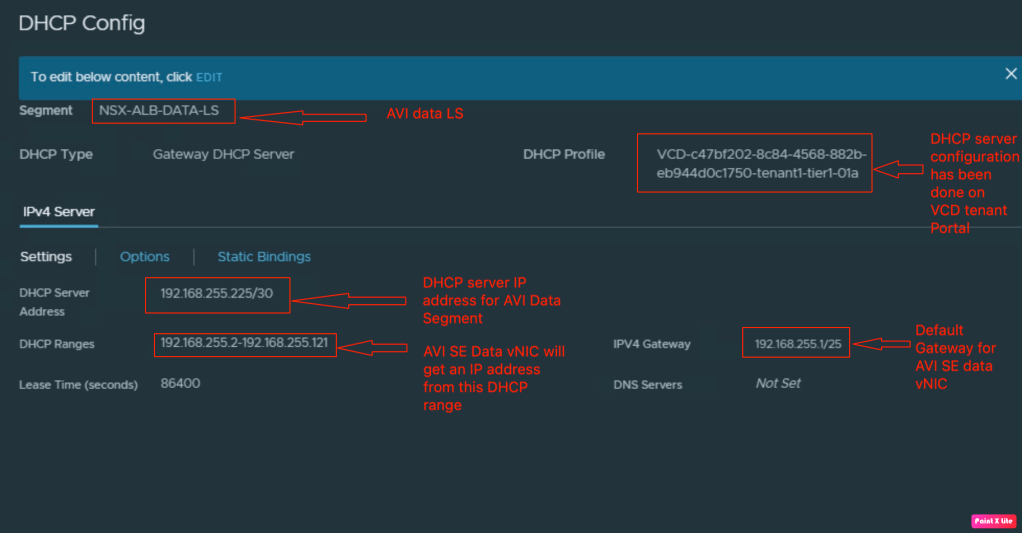
This Segment will be automatically created when we configure the Load balancer as a service in vCD OrgVDC and DHCP will be enabled automatically by VCD.
“Web-Segment” has been configured for all Web VMs that the customer will configure in OrgVDC.

In this step, we will verify the creation of a Content library in vCenter, which is required by NSX-ALB to upload the AVI SE images.
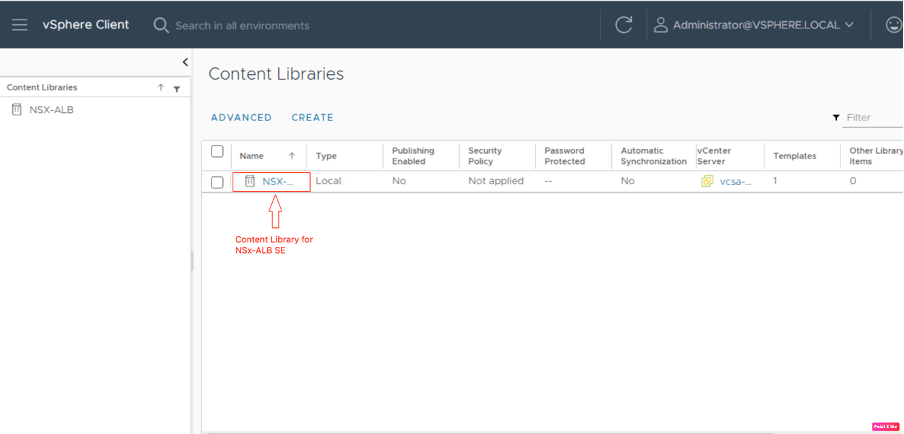
Credentials required for NSX-ALB
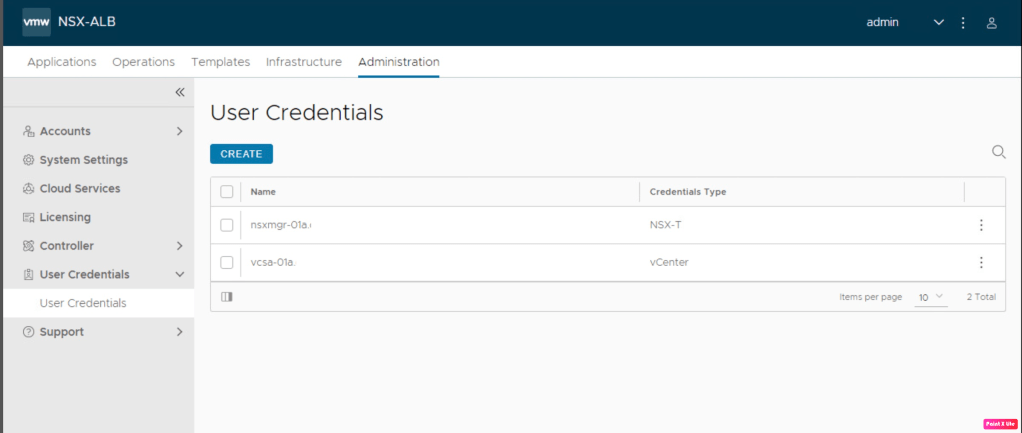
In this step, we will use the existing administrator credentials of NSX-T and vSphere environment needed for NSX-ALB to deploy the necessary components in NSX-T and vCenter.
| VMware Component | Username | Password |
| NSX-T | admin | Will be the admin password |
| vCenter | administrator@vsphere.local | Will be the admin password |
NB: Another user account with administrator privileges can be created in both vCenter and NSX-T environments, which NSX-ALB can use. However, in our environment, we are using the default user accounts of vCenter and NSX-T.
We have already created the necessary credentials for NSX-T, and vCenter in NSX-ALB Controllers. To create “User Credentials”, navigate to Administration > User Credentials > Create in NSX-ALB Controllers.
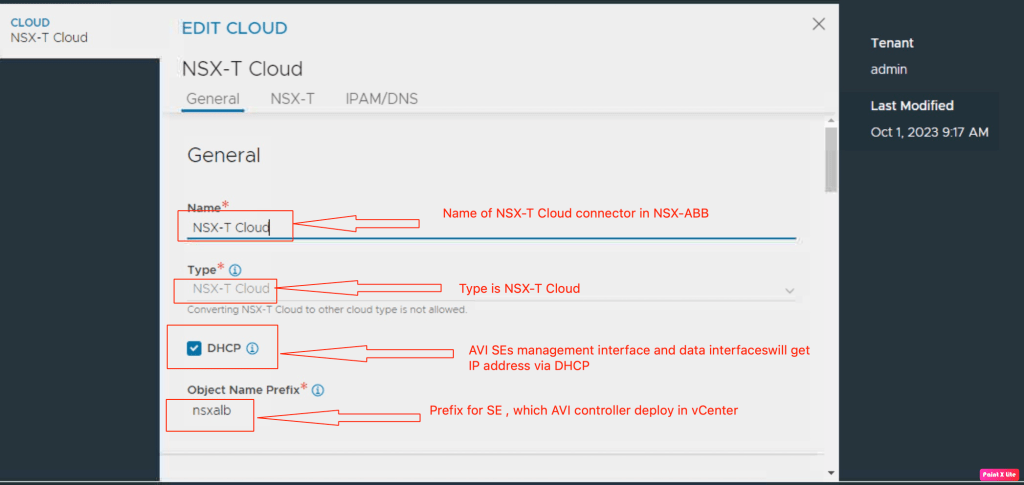
Configuring NSX-T cloud in NSX-ALB Controller
In previous steps, we have configured or validated all logical constructs required to configure the NSX-T cloud connector in the AVI Controller. In this step, we will configure the NSX-T cloud in the NSX ALB controller.
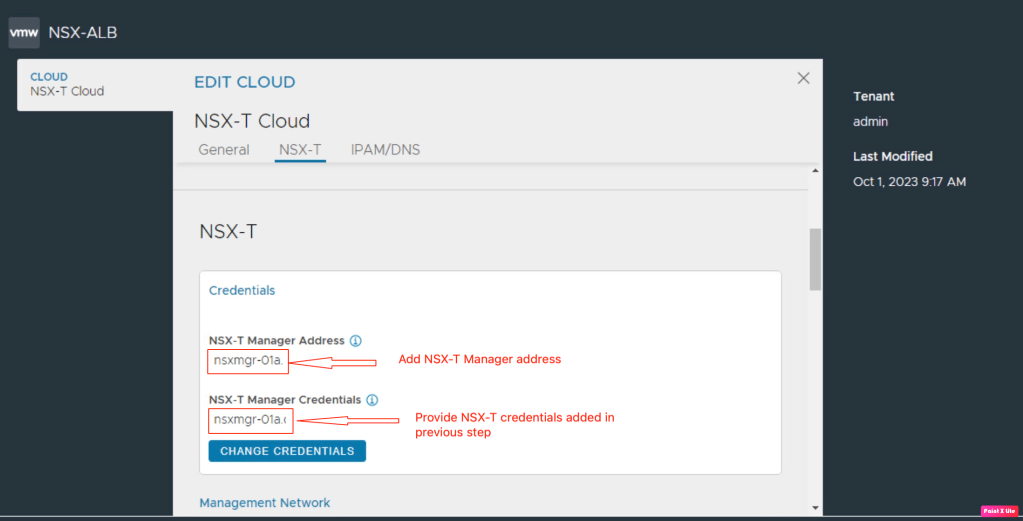
Now, it the time to provide NSX-T-related information like the NSX-T manager IP address, and credentials, which NSX-ALB will use to perform API calls on NSX-T managers.
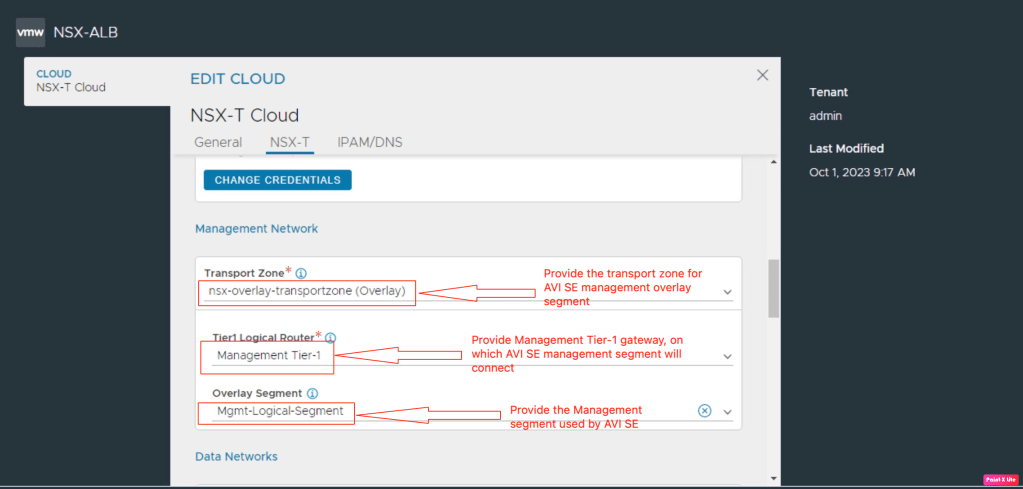
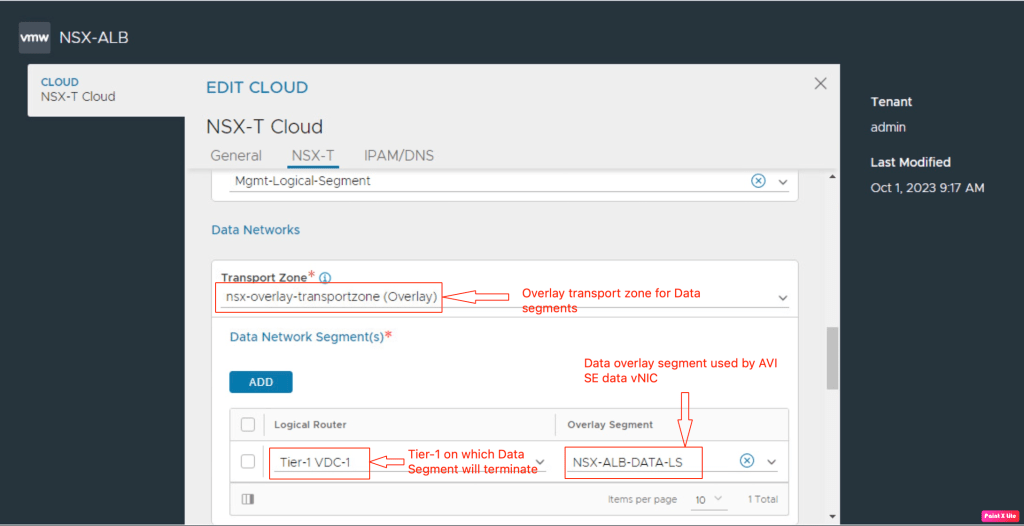
In the next step, we will provide details of logical segments, transport zones, and Tier-1 gateway used by NSX ALB to configure AVI SE management and data networks ( data network can be configured from the vCD tenant portal as well).
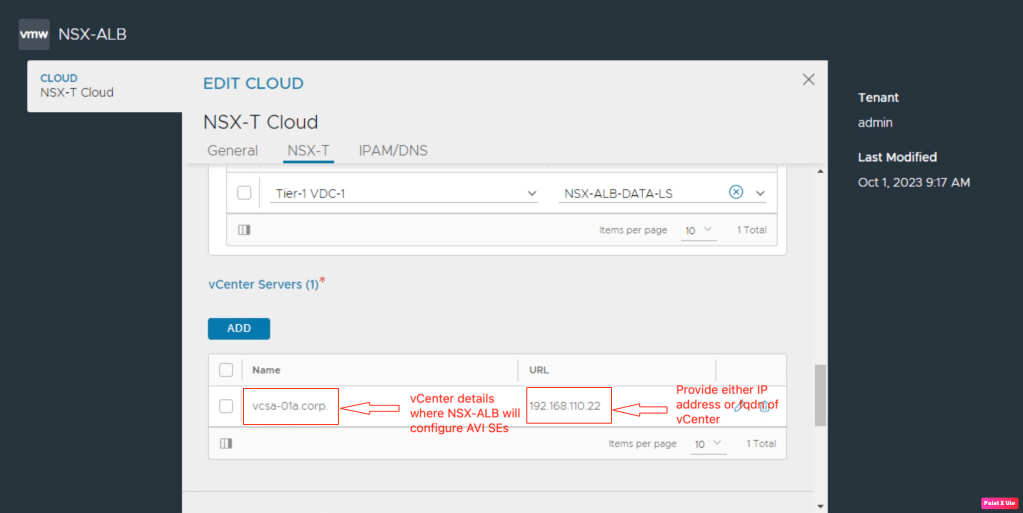
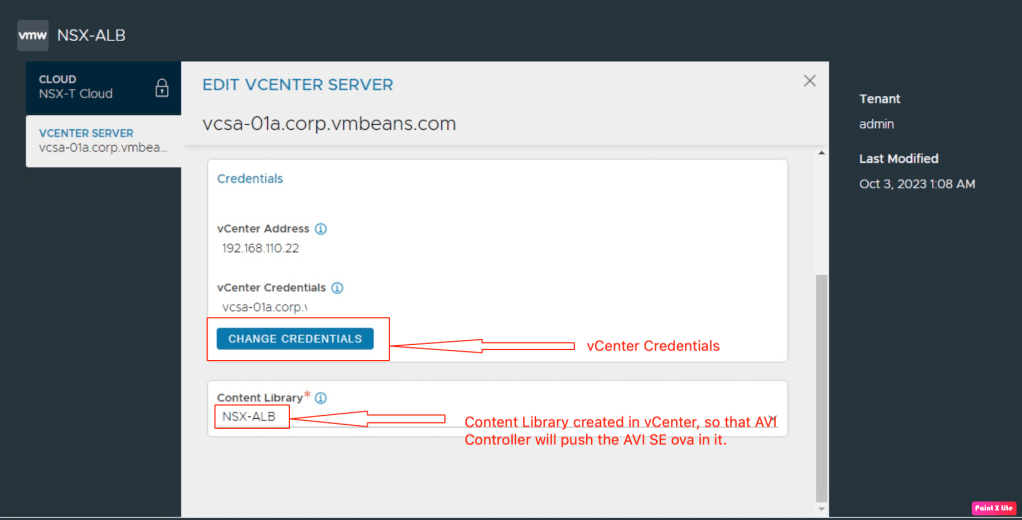
Now, is the right time to provide vCenter IP address or FQDN along with content libraries created in the previous step.
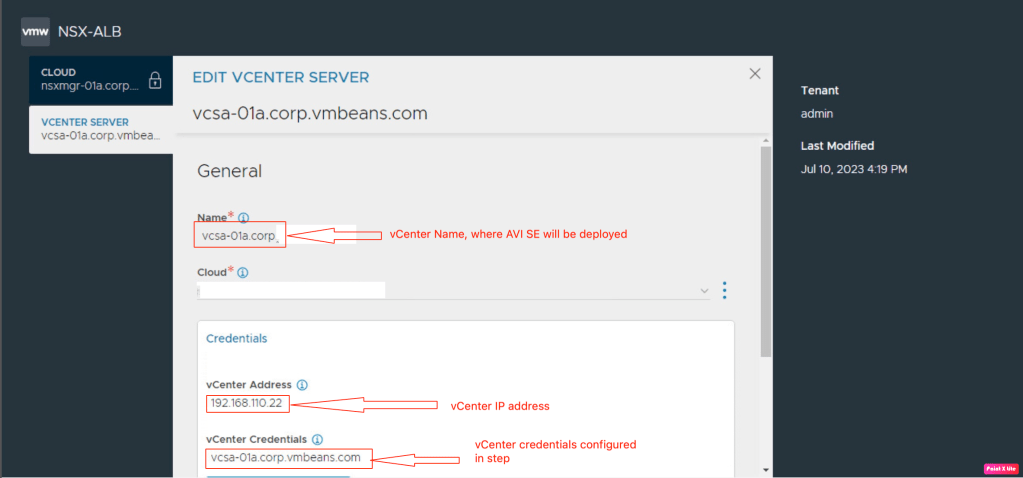
Click on the vCenter name and provide information like content libraries, and vCenter credentials created earlier.
Providing the information about previously created content library.
In the next step, we will provide IPAM, and DNS profile details along with DNS resolver information.
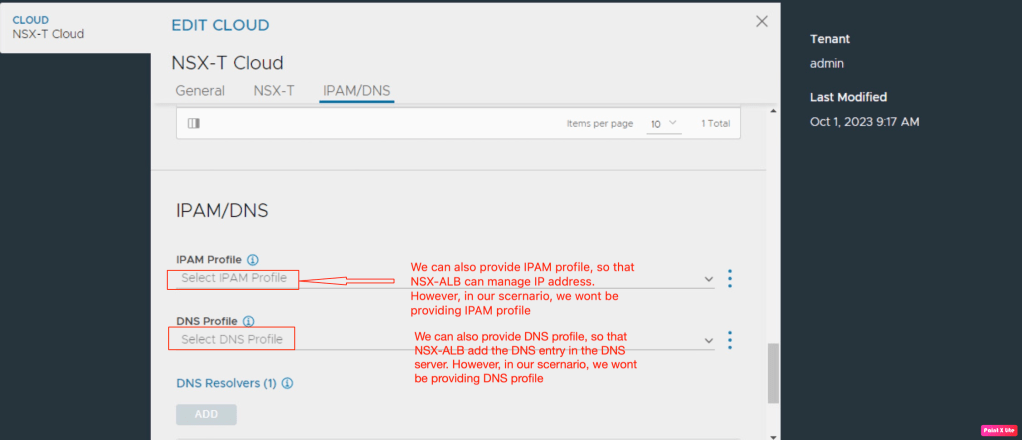
In the final step, we provide information about the DNS resolver.

Configuring SE Group for NSX-T Cloud Connector
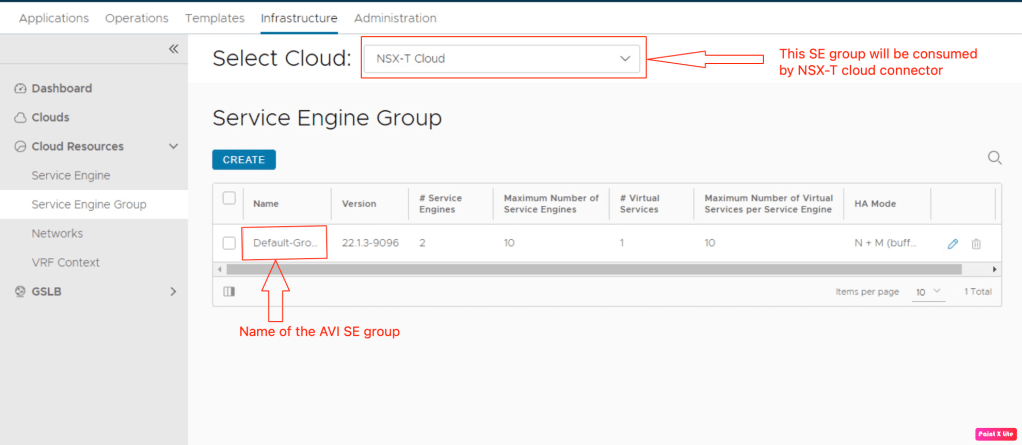
So far in this article, we have configured all necessary logical constructs required to onboard in vCD. However, we haven’t configured the AVI SE group which will host virtual services for different applications in OrgVDC. Now, it the time to allocate the AVI SE group (vCPU, Memory, High Availability Mode). Let’s proceed further and configure the AVI SE group, which the NSX-T cloud will consume. Navigate to NSX-ALB controller > Infrastructure > Cloud Resources > Service Engine Group > Select Cloud > Create
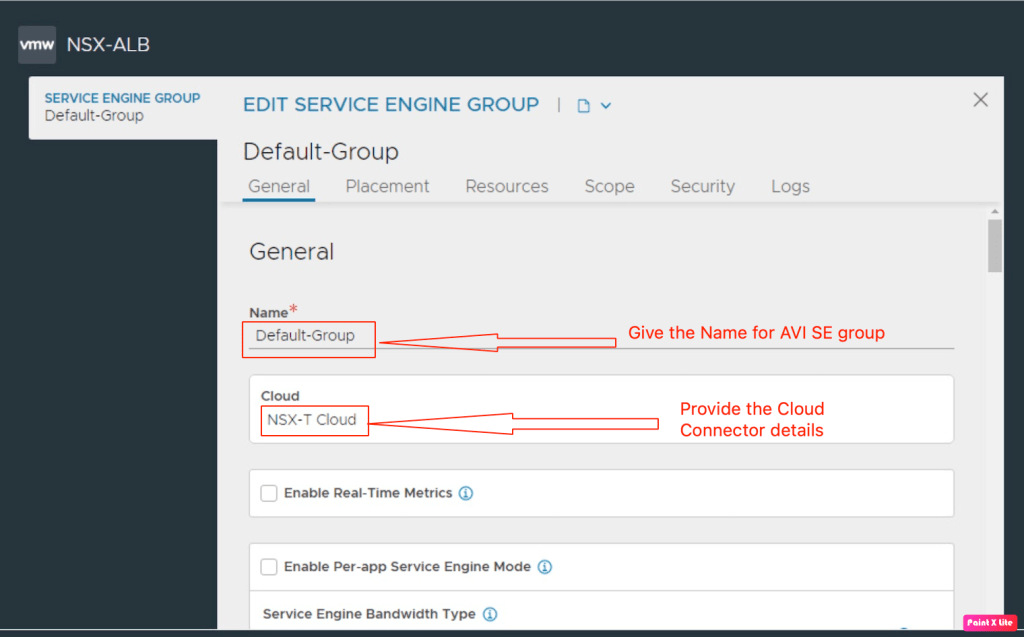
In the next step, we will define HA mode along with the number of SEs in this group and the number of buffer service engines.
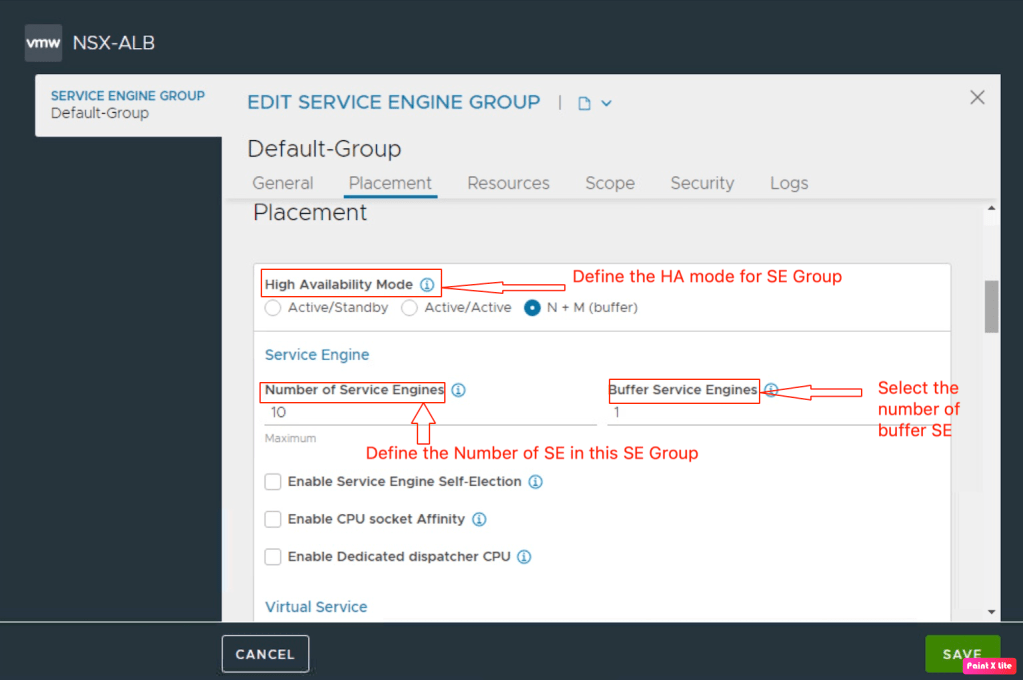
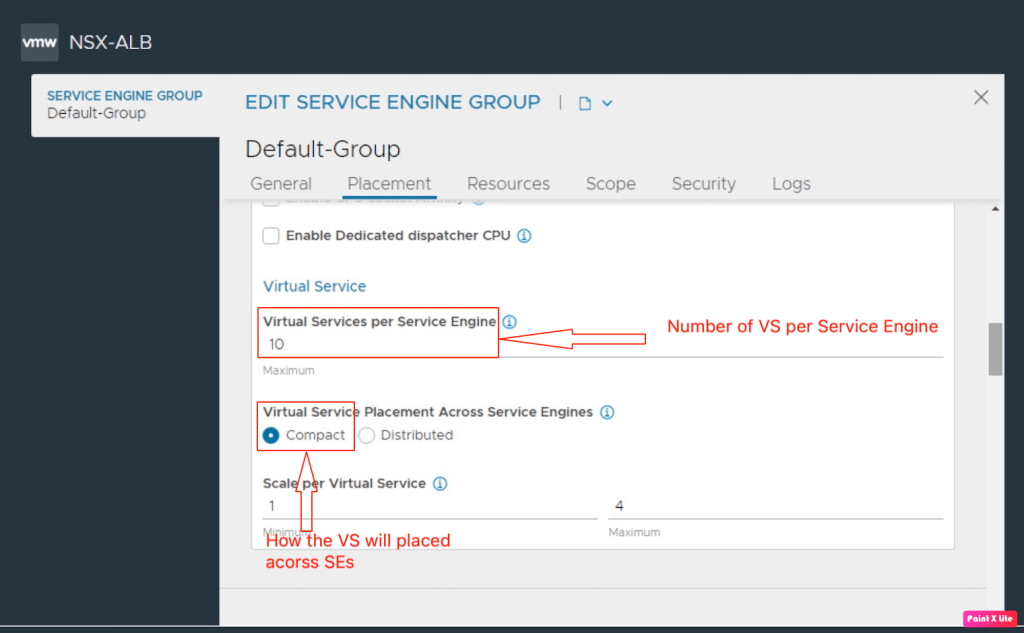
Now we will define the number of Virtual services supported per SE along with how these virtual services will be placed across SEs.
Defining the Memory, vCPU, the storage definition for each SE.
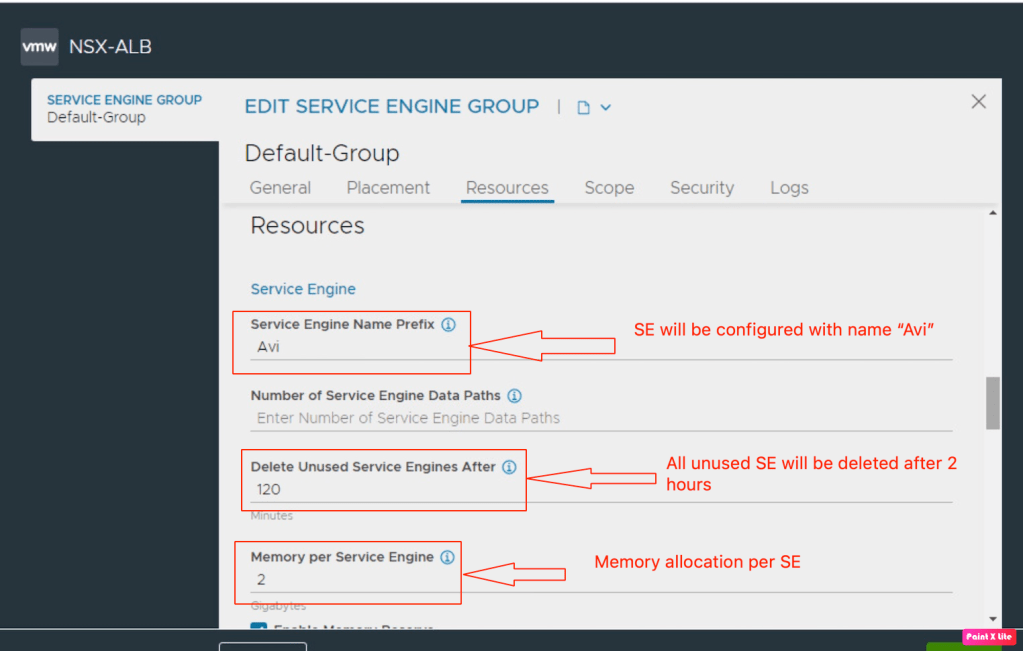
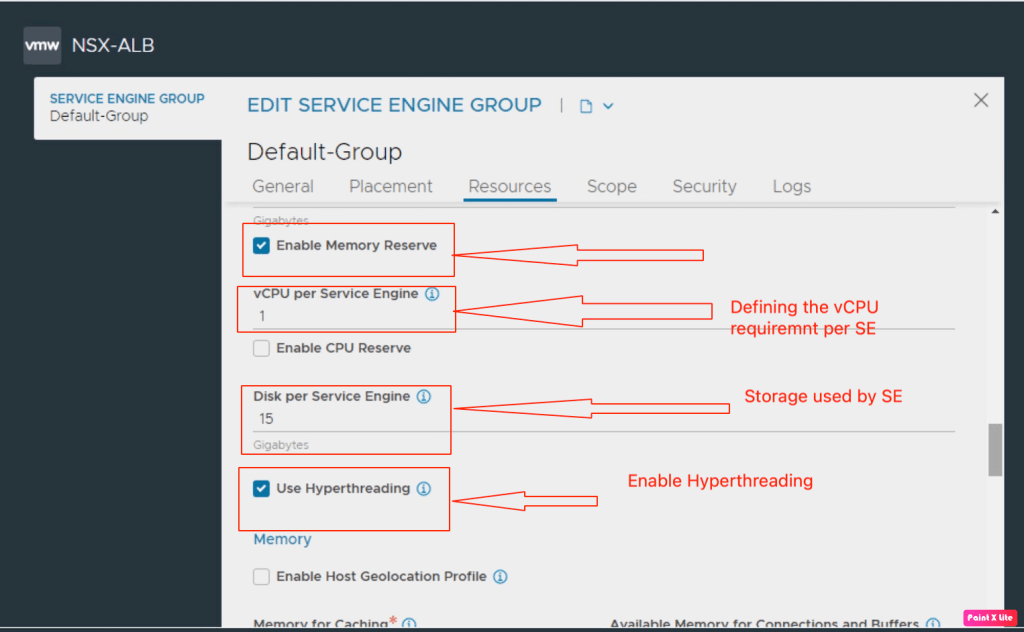
All necessary information has been fed to the AVI SE group, before proceeding further, let’s verify the status of the AVI SE group.
In Summary:
In this blog, we have seen pre-requisites required to configure the NSX-T cloud connector in the NSX ALB Controller like logical segments, Tier-1, Tier-0 gateway, and necessary credentials required by NSX-ALB to configure AVI SE’s in vCD OrgVDC. We have also configured the NSX-T cloud connector in the NSX-ALB, which will be consumed by vCD to provide Load Balancer as a services to different customers. We have also configured the AVI SE group which the NX-T cloud will consume.
In the next blog, we will integrate NSX-ALB, the NSX-T cloud connector, and AVI service groups in vCD. After that, we will also configure one virtual service for an application that a customer runs in OrgVDC.


Leave a Reply