

In the last blog, we showcased the pre-requisites required to configure the NSX-T cloud connector in the NSX ALB Controller like logical segments, Tier-1, Tier-0 gateway, and necessary credentials required by NSX-ALB to configure AVI SEs in vCD OrgVDC. We had also configured the NSX-T cloud connector in the NSX-ALB along with it, we had also configured the AVI SE group which NSX-T would consume. In this blog, we will explore the integration of NSX-ALB with VCD using a previously configured NSX-T cloud connector and also allocate the number of virtual services to an organization to which they will expose applications accessible from the outside world.
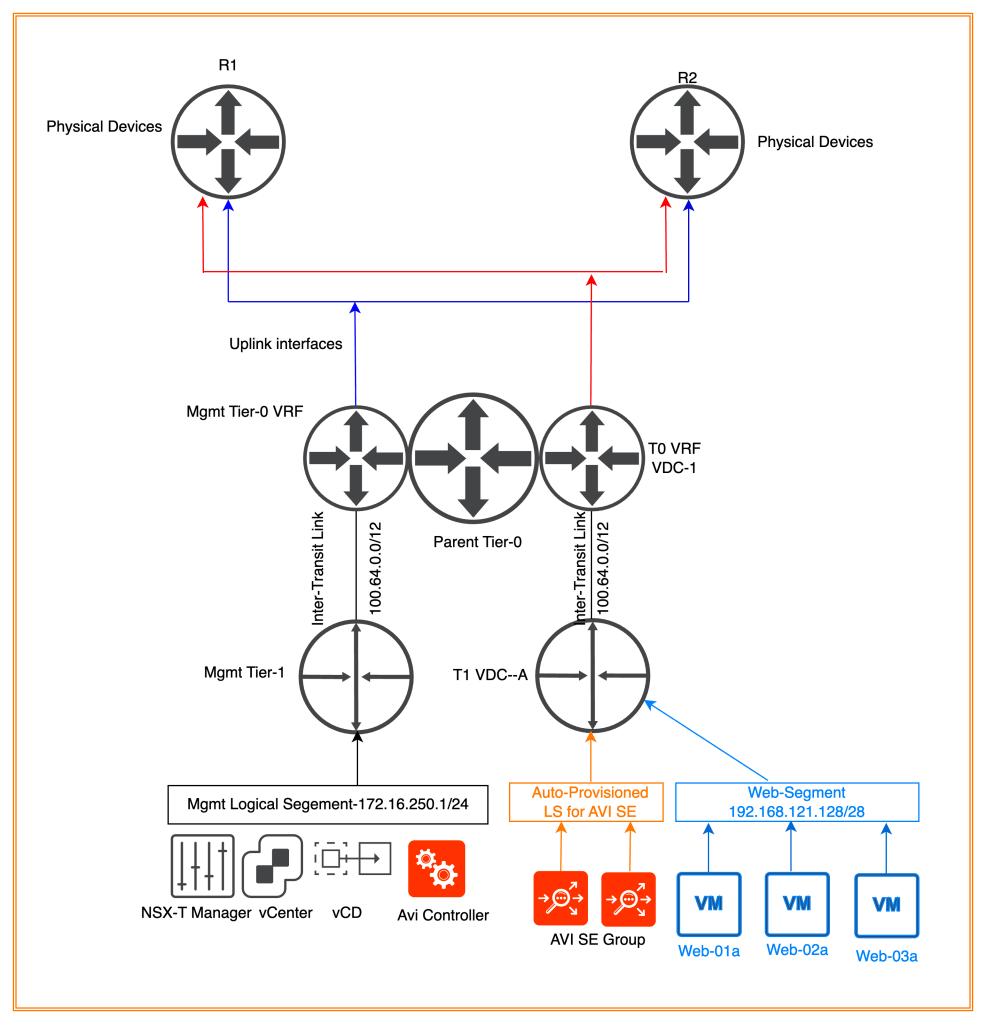
Topology Diagram
All necessary components required to on-board NSX-ALB in VCD have been configured. For example, we had already seen in the previous series, how vCD had been integrated with NSX-T using the same concept we had already configured different segments (AVI LB management, and data segments) required to onboard AVI load balancers.
In the below diagram, two separate VRF tier-0s had been configured, one for management and another one for vCD tenant-A belonging to OrganizationA. In the below diagram, we had configured two Tier-0 VRF gateways one for management, and another one for OrgVDC. All management components like vCenter, NSX-T, NSX-ALB, and AVI SE are connected to “Mgmt Logical Switch” (172.16.250.0/24), which are connected to “Mgmt Tier-1”. This Tier-1 is connected “Mgmt Tier-0 VRF”.
AVI SE data segment will be auto-provisioned by vCD in NSX-T. For example, one logical segment had been configured by vCD for AVI SE data segments, which will be connected to “Tier-1 VDC-A” (OrgVDC Tier-1 Gateway)
Integrating AVI controller with vCD
We have already deployed AVI controllers along with the NSX-T cloud connector and SE group in the last blog https://vxlearners.com/2023/10/03/vcd-integration-with-nsx-alb-part-1/. In this step, we will integrate vCD with NSX-ALB.
To start navigate to the vCD provider console, go to cloud resources NSX-ALB, and add controllers.
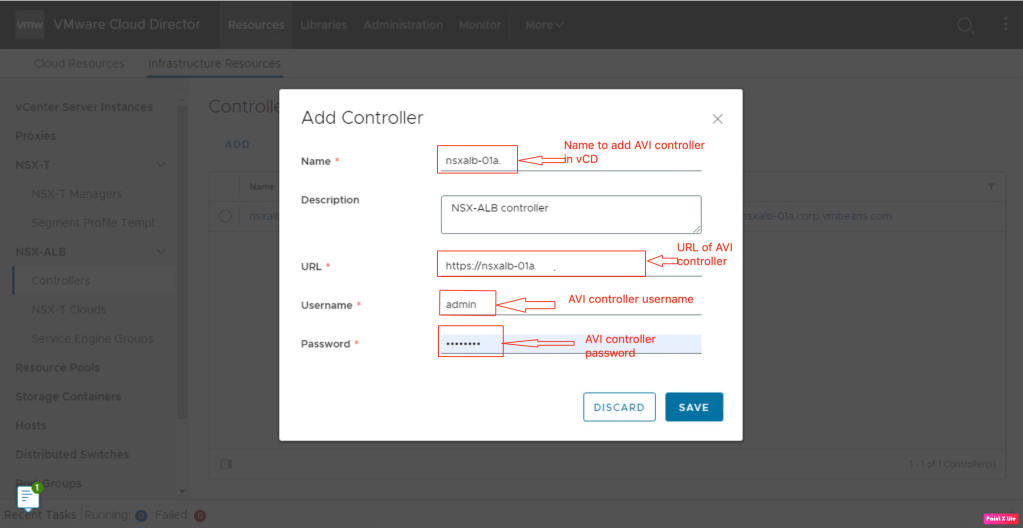
In this step, we have used the administrator credentials of the NSX-ALB controller however a dedicated username with admin privileges can also be used.
Now we will verify the status of the NSX-ALB controller in the vCD Provider tenant.

The NSX-ALB controller is successfully added in the vCD provider tenant.
In this step of the blog, we will integrate NSX-T Cloud deployed in the previous blog in vCD.
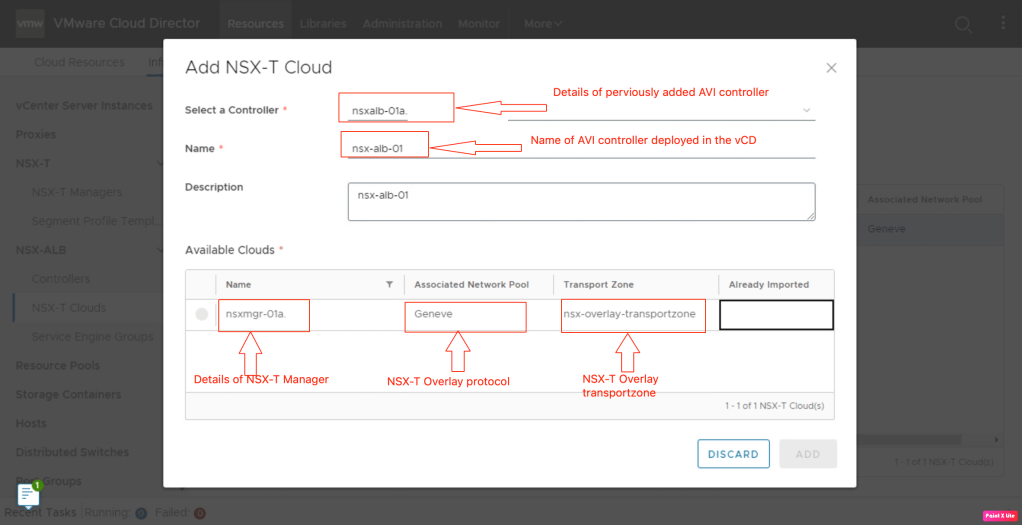
Let’s check the status of NSX-T Cloud in vCD.
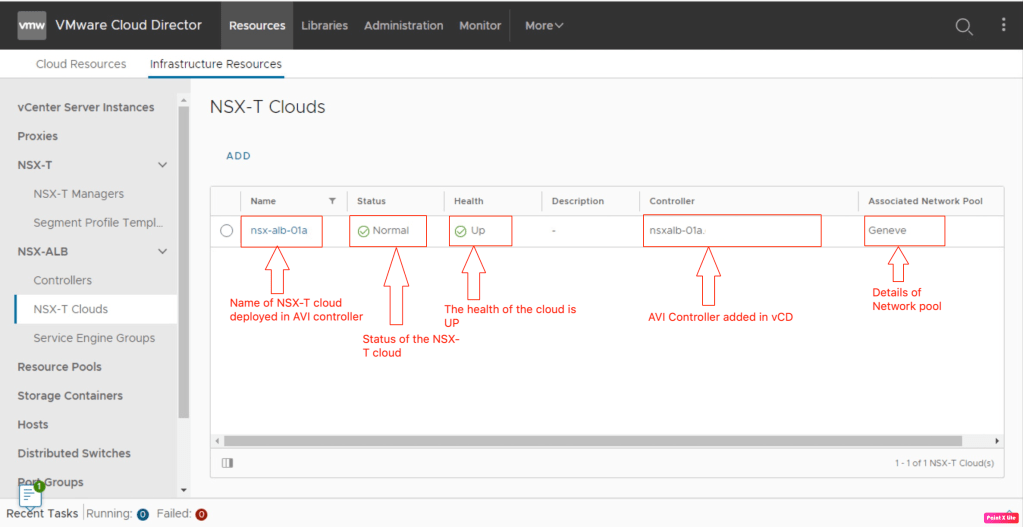
Now it’s the right time to call the SE groups which, will actually host the services in customer OrgVDC.
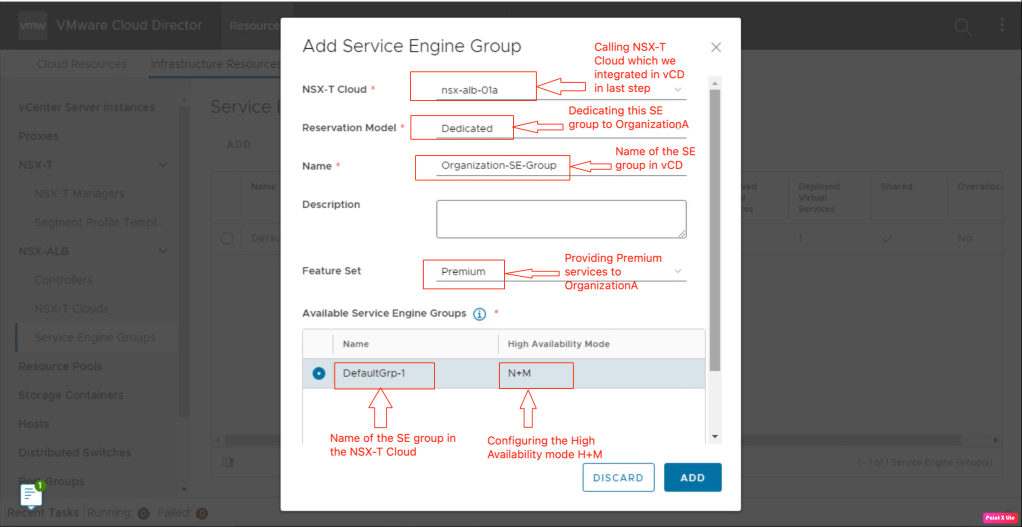
We have configured two SE groups in the NSX-T cloud connector on the AVI controller. One SE group will be shared among different organizations (maximum of 8 orgVDC) and another SE group dedicated to OrganizationA.

- Reservation Model
There are two types of reservation modes either shared or dedicated when configuring the SE groups in the VMware Cloud Director.
| Reservation Model | Usage |
| Shared | To assign the SE group to multiple OrgVDC Single SE has a maximum of nine virtual interfaces. One interface for Management. Another 8 interfaces can be shared across multiple edge gateways. |
| Dedicated | To assign the SE group to the single OrgVDC. |
- Feature Set
There are two types of feature sets available for customers in vCD.
| Options | Usage |
| Standard | This type of feature set provides load-balancing features like NSX ALB basic edition. |
| Premium | This type of feature set provides load-balancing features like NSX ALB Enterprise edition which includes additional load-balancing pool algorithm types and pool persistence profiles, virtual service analytics, pool analytics, multiple virtual service ports, and additional virtual service application profile types. |
IP Space
This is the last logical construct required to configure the Load balancer as a service in vCD. Whenever a customer wants to configure a service like NAT, LB, and L2VPN, a new IP address has to be allocated prior to configuring these services. IP Space provides the IP addresses that the above services will consume.
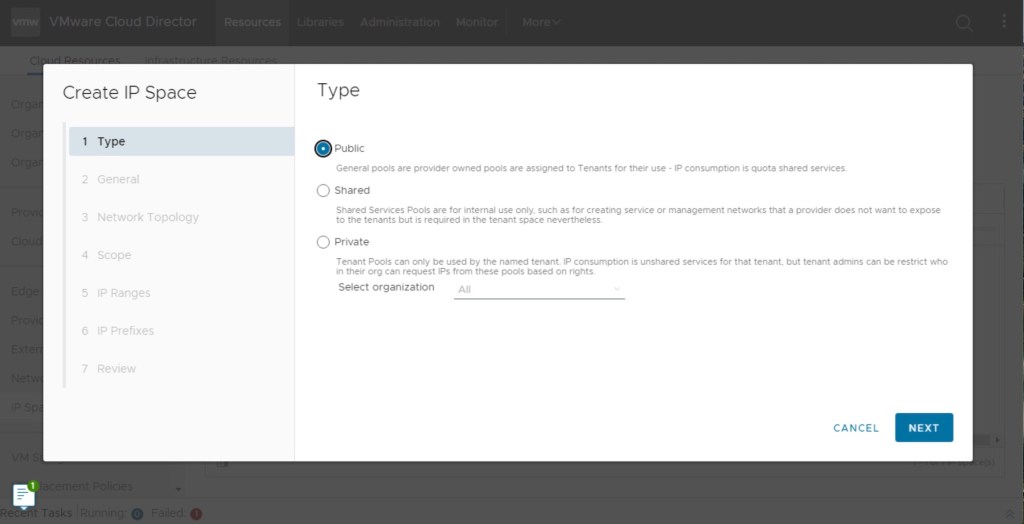
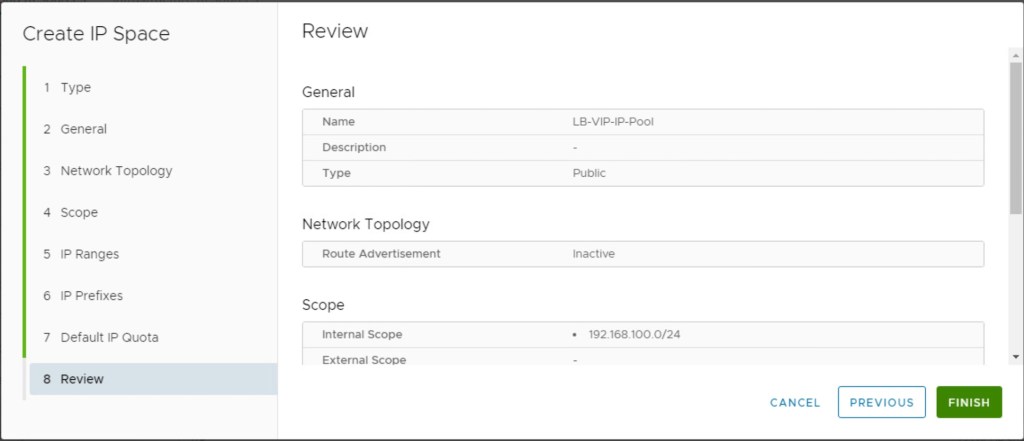
In order to configure IP Space, navigate to the vCD provider portal, go to Cloud Resources, and create IP Space. Specify the type of IP Space that is Public in our scenario.
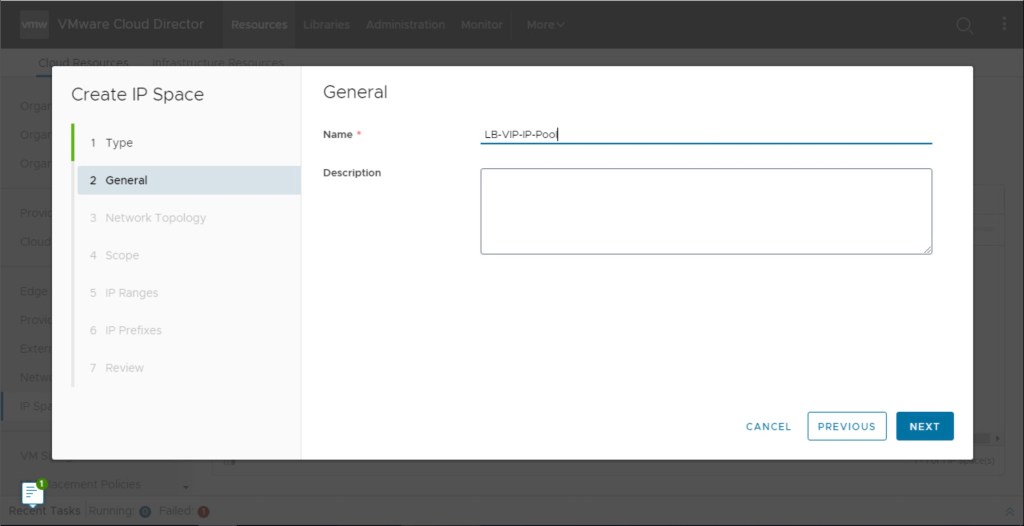
Provide the General parameters like name and description in the next step.
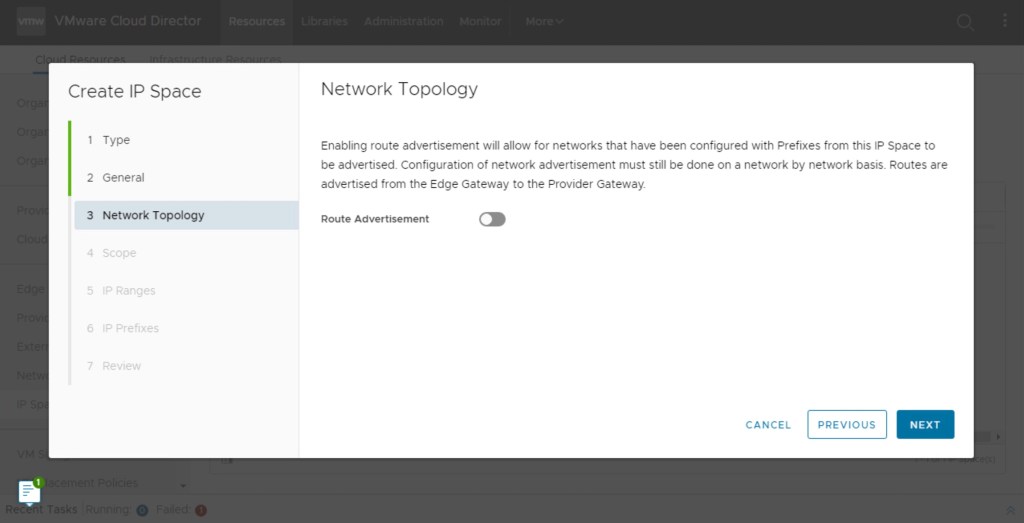
In this step, either to advertise the IP space or to advertise them from OrgVDC. In our scenario, all this subnet will be advertised from Organisation VDC.
In this step, we will define the actual IP network from which a customer will request an IP address.
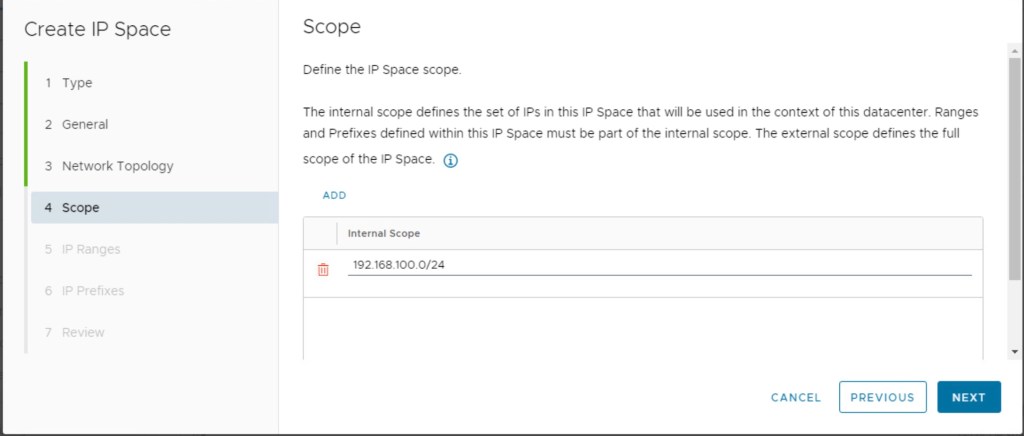
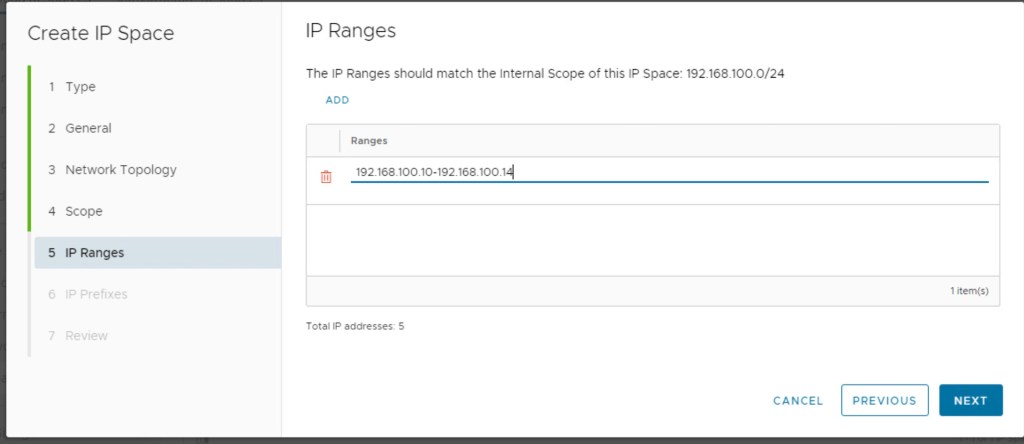
After configuring the IP network, we will configure IP ranges.
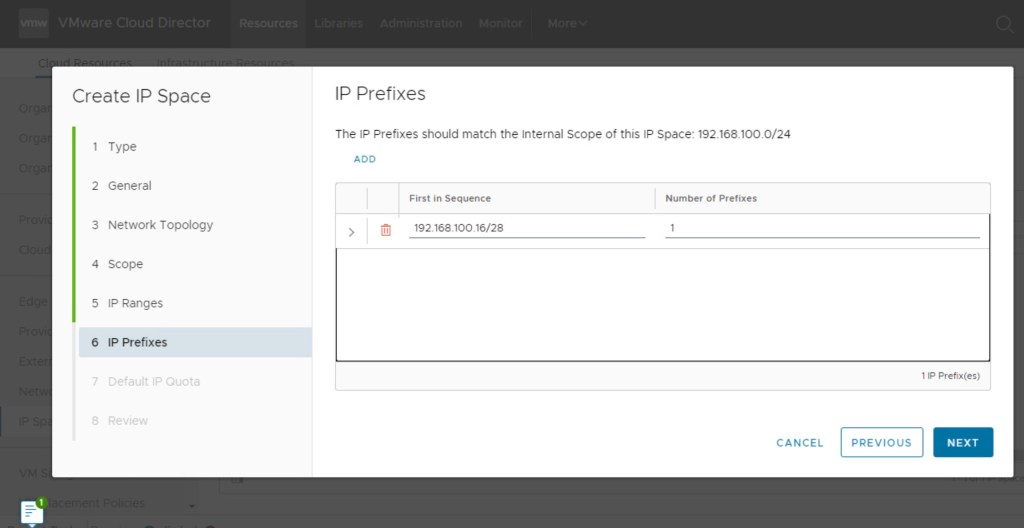
In this step, we will configure the IP prefix that the vCD provider tenant will consume. When we configure Virtual Servers in OrgVDC, we will create a sub-pool from this IP space in the OrgVDC.
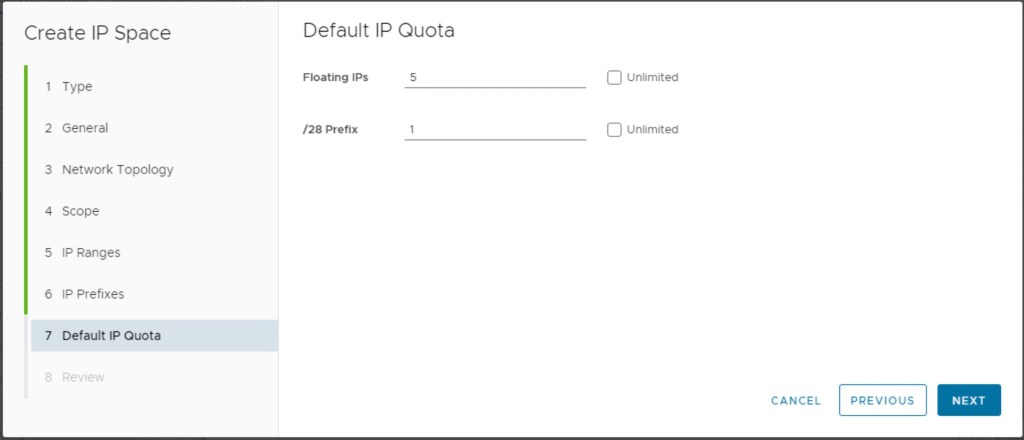
Define the Default IP Quota for providing Floating IPs and /28 prefixes per tenant.
In this step, we will review the configuration and save the configuration.
Finally, we will review the status of newly created IP Spaces.

In Summary:
In the last blog, we had seen pre-requisites required to configure the NSX-T cloud connector in the NSX ALB Controller like logical segments, Tier-1, Tier-0 gateway, and necessary credentials required by NSX-ALB to configure AVI SEs in vCD OrgVDC. We had also configured the NSX-T cloud connector in the NSX-ALB, which would be consumed by vCD to provide Load Balancer as a service to different customers. We had also configured the AVI SE group which the NX-T cloud will consume.
In this blog, we have integrated NSX-ALB, the NSX-T cloud connector, and AVI service groups in vCD along with that we have also configured IP Spaces that will be used when we create load-balancing as a service.
In the next blog, we will also allocate SE Groups, and IP spaces required for Virtual Services. A new Virtual service for an internet-facing application will be created and advertised to the physical environment via Tier-1 and Tier-0 gateways. We will also validate the accessibility of the application from the physical environment.


 vxlearners
Leave a comment